
History:
MBReviews.com is quite old, I started it in 2015 and from the first year, I have tested some of the more popular wireless routers out there, such as the ASUS RT-AC68U and the Netgear R7000 (how the mighty have fallen). And it was tempting to just move one file from a server device to a client, take note of the fastest value and call it a day. But then I started using this beautiful tool: iperf!
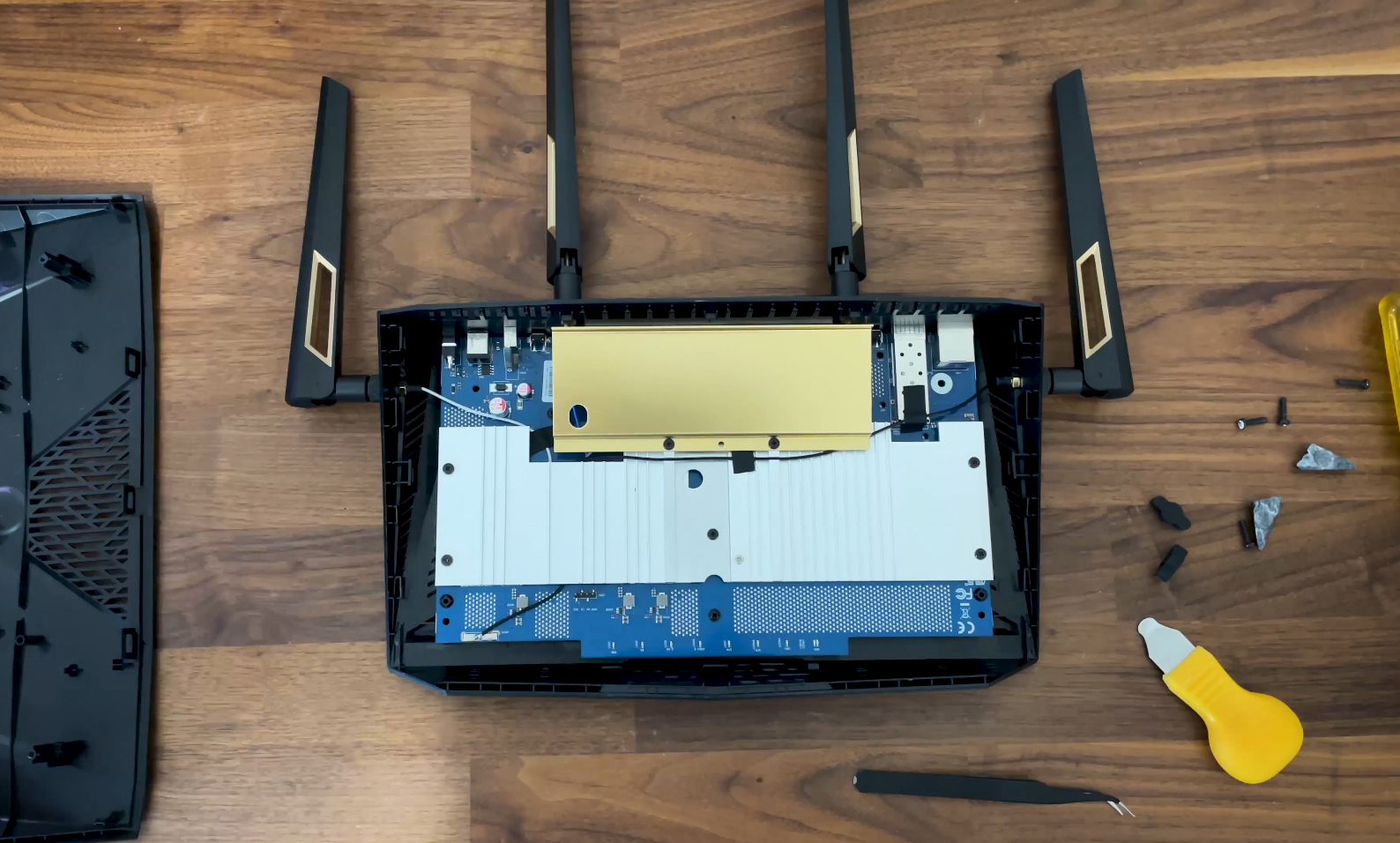
Yes, it’s synthetic testing, but you can control so much and easily configure the direction, streams, duration and rate. I won’t go into details, you know the tool, it’s a classic.
Of course, most other reviewers are still using this testing methodology even today which is perfectly fair and a few still preferring to simply move one file from one PC to another (please update your testing), but I wanted more. First, the test used to expose just the throughput downstream at three points inside a house. This was fine if it was used to compare multiple devices in a very narrow fashion, but far from serious testing methodology. In 2018 I added multiple other testing points to better showcase the range and included the upstream as well. I also started using various types of WiFi adapters (such as the Intel 8265) and multiple clients from different WiFi generations. This is important since most people will have a mix inside their network, not just the shiny new things on the market.
Another important improvement (in 2020) was the inclusion of a long-term stability test where I ran the iperf test up and/or down at one or fixed positions away from the router and saw how the throughput fluctuates over a set period of time.
A few months later, in 2021, I made one of the most important upgrades which was the reliance on the signal strength. This was the first time when the user could attempt to reproduce the results in their own home, well, to a certain degree, because a single client test is far from representative to how the clients would function when connected to the wireless router or access point. But it was the step in the right direction and inside the tool right now, we can compare devices under much more meaningful conditions than distance alone.
Another improvement that came in the middle of 2023 was the inclusion of multi-client stress tests. Finally, we got to evolve above the single-client tests that have become easy, common and complacent for the entire reviewing community unfortunately. I initially relied on Mr Jim Salter’s net hydra, a tool that was so useful to determine how multiple devices would perform at the same time when connected to the wireless router while various types of simulated traffic would run on them. Initially, I started light, with five clients running simulated 1080p streaming traffic with a cap at 5Mbps, then tried to check how 4K would perform initially with a cap at 25Mbps, then 35Mbps. These are not really realistic if you don’t include other types of traffic, so I also included intense browsing where it simulated a person that desperately checks the web for minutes for important data (12 concurrent 128KB files + randomized pauses of up to 500ms). I also included VoIP traffic and uncapped download as well, but that came a few months later.
And that brings us to today.
Current methodology:
The current Test Lab contains multi-client results from two protocol generations, v1 and v1.5. Single-client, stability and MLO results are grouped separately according to their own test conditions. Most devices currently use v1. Version 1.5 is a later expansion based on my own testing tools and a different set of workloads. Because the scenario changed, the v1 and v1.5 results need to be kept separate.
The wireless clients that have been used are the following:
| 2x Lenovo Y520 | Custom PC 1 | Custom PC 2 | MacBook Pro | ZimaBoard 832 SBC | |
| WiFi Adapter | Intel AX200 WiFi 6 | TP-Link AXE5400 WiFi 6E | MSI-HERALD-BE-NCM865 WiFi 7 | 802.11ac WiFi 5 | Asus PCE-AC68 WiFi 5 |
| RAM | 16GB | 16GB | 32GB | 8GB | 8GB |
| Storage | NVMe SSD | SSD | SSD | NVMe SSD | SSD |
| CPU | Intel i7-7700HQ | Intel i5 2500K | AMD Ryzen 5 5600xt | Intel Core i5 | Intel Celeron Apollo Lake N3450 |
| GPU | GTX 1050ti GPU | NVidia GT720 | Radeon RX 6800xt | Intel Iris Graphics 540 | Intel HD Graphics 500 |
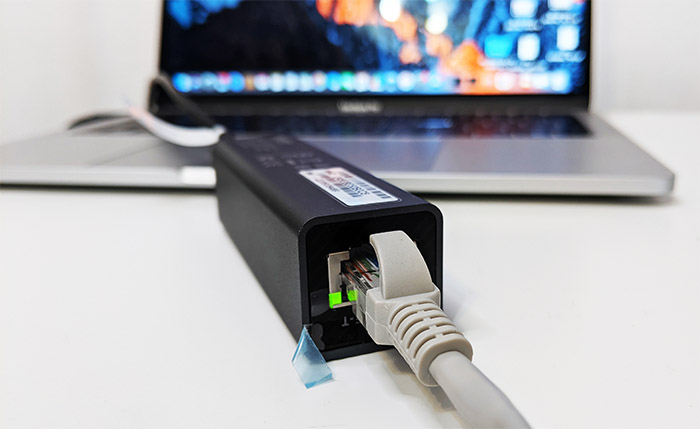
The server device is not the same on every test. Most of the time, it’s the Custom PC 2 because it is equipped with a 2.5GbE network adapter, but, for the wireless routers and access points that come with 5GbE and 10GbE ports, I do need to rely on a ZimaBlade 7700 with a 10GbE adapter, so the wired link does not become the bottleneck.
The single client tests:
They consist of a server PC and a client device, it can be WiFi 7, WiFi 6E, WiFi 6 or WiFi 5, depending on the product I am testing, and it’s always shown in both the dedicated review and the MBReviews Test Lab tool. The test is run using iperf3, it’s done both upstream and downstream at various spots inside a house, with the RSSI noted. Since it’s a detached house in a village, it’s a low-density residential environment, but, of course, it’s not RF isolated.
On the 6GHz radio band, I rely on the 320MHz channel bandwidth when available, as well as 160MHz. On the 5Ghz radio, I test the devices using the 160MHz and the 80MHz channel width, as well as the optional 240MHz configuration if supported. For the 2.4GHz behavior, I usually use 40MHz and try to use a channel that’s less impacted by potential interference.
The stability tests:
For this type of test, I run sustained iperf3 traffic at a fixed client position and record the throughput over time. Also, depending on the device and test generation, I may run the test at several fixed spots in the house and in one or both directions. The goal is not maximum throughput, but to expose fluctuations, drops and other behavior that a short throughput run can hide.
MLO:
I also try to test every MLO band combination supported by both the device under test and the client. I use the PC with the MSI-HERALD-BE-NCM865-WiFi 7 adapter as the client and the ZimaBlade with the 10GbE as the server.
The multi-client tests:
The v1 of this test relied on net-hydra developed by Mr Jim Salter and it was helpful for checking the latency at the client level when 1080p streaming was simulated on all devices at the same time. Not really realistic, but it’s a mild stress test. Same is true for 4K streaming and when adding intense browsing as well (12 concurrent 128KB files + randomized pauses of up to 500ms), and especially for the uncapped downloading traffic on all clients at the same time. You’re going to see insanely high latency values which is normal if this is what you’re running in your network. The chances are slim though and a more representative picture is shown by the mixed traffic workloads. Something like a capped downloading client, 4K streaming and browsing will better show how things will actually work if you use that specific router with this type of client devices.
And that’s what I was trying to do with the v1.5 because I wanted to go beyond the limits of just stressing the router. It’s useful, but it won’t help the user understand if their clients will play nice, so you may get a distorted image that all wireless routers are bad. They’re not 😀
So, currently only the EnGenius ECW515 went through these more realistic new multi-client tests, while missing the older ones, which is why it is displayed separately in the Test Lab Tool.
The next test suite will retain the selected v1 scenarios for historical comparison while also running the newer multi-client protocol. Each result will keep its own protocol identifier. There will also be the newer multi-client tests and more as long as the time allows all of these tests. A complete review and test cycle takes me at least two weeks of daily work assuming I don’t run into bugs. And I usually do.. making the manufacturers very unhappy 😀