
Originally published: August 26, 2024
Updated: September 4, 2026
ASUS has started to release its WiFi 7 models, one after the other, so I decided to buy the already-one-year old RT-AXE7800. Yeah, so if you haven’t already read all the reviews available online, then welcome and you may be in for a treat because I usually test these devices a bit different than the rest, as you will see. OK, so what does the RT-AXE7800 promise to offer?
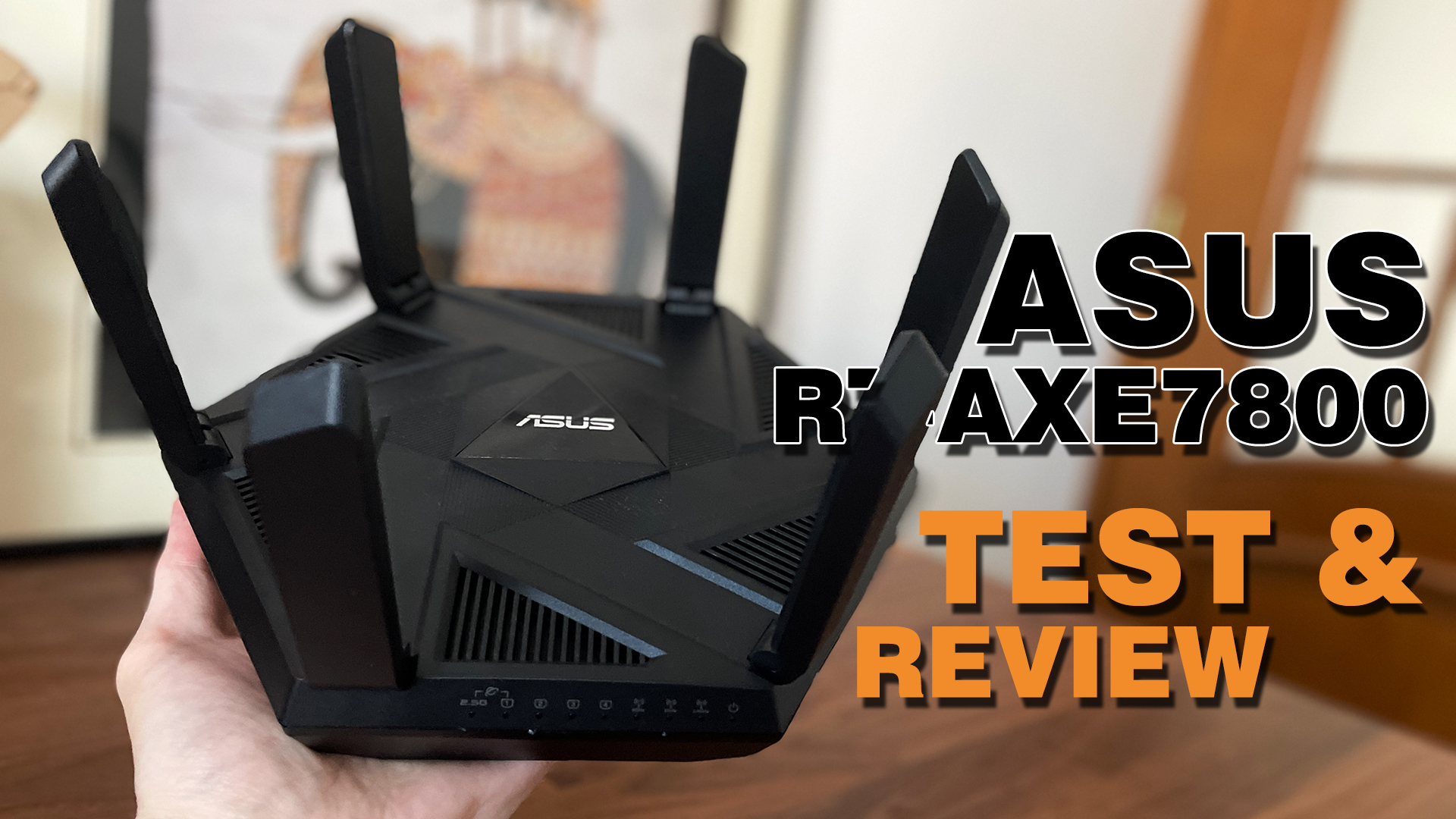
The most important aspect is the third radio band, which operates on the 6GHz frequency, but we are still limited to the 160MHz width, only the WiFi 7 devices have pushed farther reaching 320MHz, for now. OFDMA is also supported and we do get one 2.5GbE port which can be used for both WAN and LAN purposes. I also did see that there is support for the LAN aggregation and the WAN aggregation. It’s not just the usual failover, load balancing algorithms, but actual increased bandwidth, although it’s just up to 2Gbps. The OS is also feature-packed and you can use this device to create an AiMesh network, but I saw that there is no support for Merlin which is a bit of a shame.
Design and Build Quality
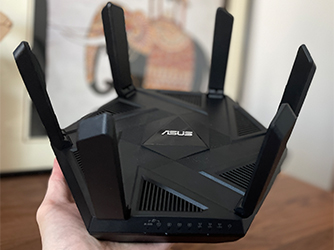
Let’s now talk about the design of the RT-AXE7800. The router has a sort of arachnid look and, since the antennas are non-removable, the router comes with all six of them folded at the top, you know, just like when a spider curls up its feet after being slapped. I did make a video which shows how easy it is to change the antennas on routers that have them non-removable, but these antennas will be a pain to change due to their wide base.
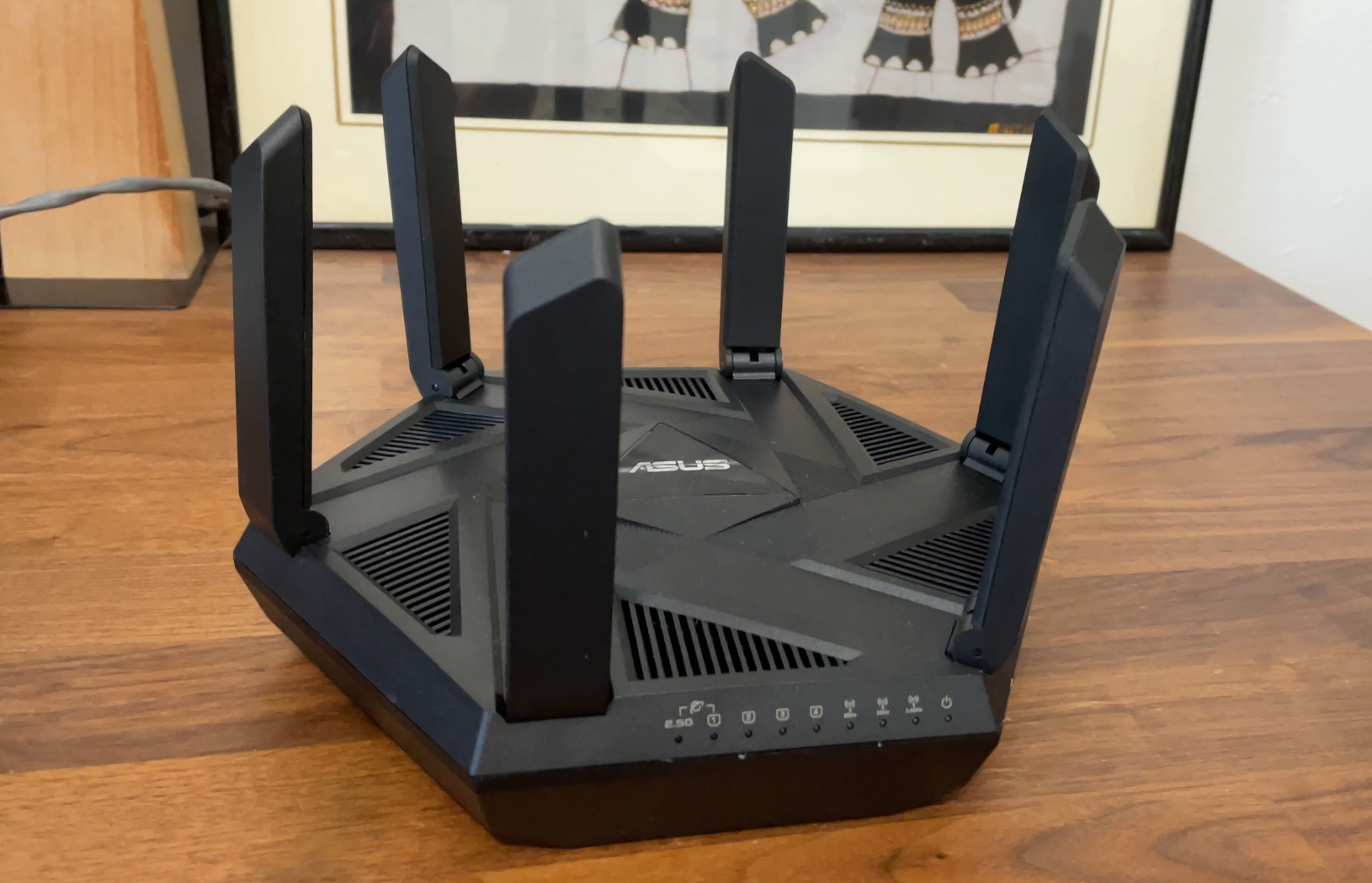
At least the device itself is fairly compact and ASUS has added the option to mount the router on the wall if there is no space on a shelf. There is a DC-In port on the left, followed by three Gigabit LAN ports, the third supporting link aggregation with the fourth Gigabit port. And this last one can also function as WAN, same as the 2.5GbE port that’s farther to the right. And then we also get a USB 3.0 port.
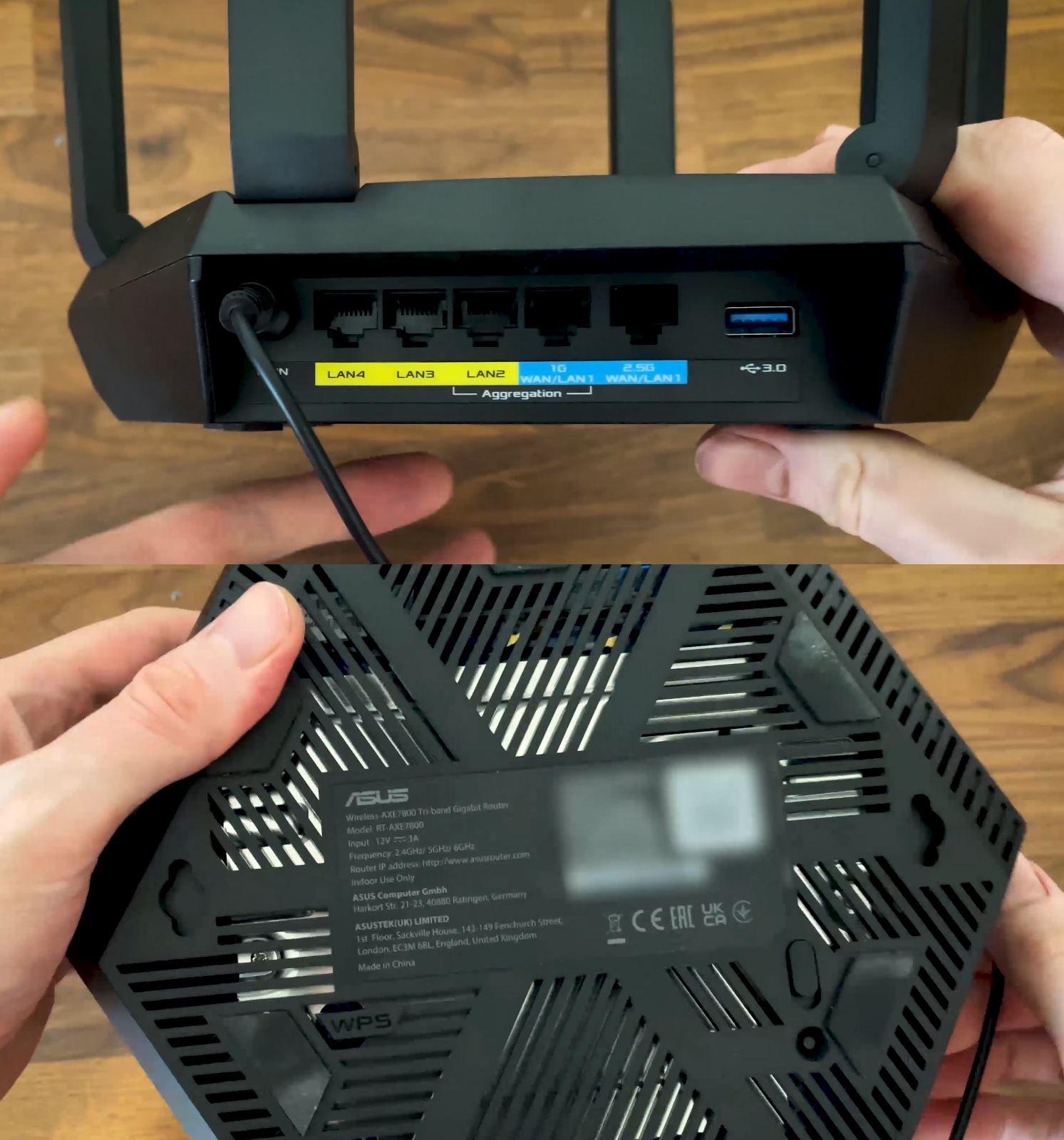
The usual set of buttons is positioned on the bottom side and the developers definitely showed their creative side here which I definitely enjoyed. But enough about this, let’s see the wireless performance of this router.
Wireless Performance and Test Lab
ASUS RT-AXE7800
Test details
Test year: 2024. Firmware: 3.0.0.4.377_24631.
Charts use measurements stored in the MBReviews benchmark database. Stability charts are downsampled for display; the full one-second series remains in the database.
Read the full MBReviews Wi-Fi testing methodology.
Explorer version: 0.9.11.
For testing the wireless performance, I relied on a laptop equipped with an Intel AX200 As the WiFi 6 client, another laptop with an Intel 8265 and a Pixel 2 XL smartphone for the WiFi 5 client devices. As for the WiFi 6E client, I used a PC that was equipped with a TP-Link TX3000E adapter. Upstream, I saw that the throughput easily broke through the Gigabit limit and that’s because both were using the 160MHz channel bandwidth and there wasn’t that much interference to mess things up. As for range, we again need to look at the signal attenuation graph which reveals that at -71dB, we get way more than 100Mbps on all clients minus one, while at -86dB, we can see that the WiFi 6E barely managed to offer a couple of megabytes.
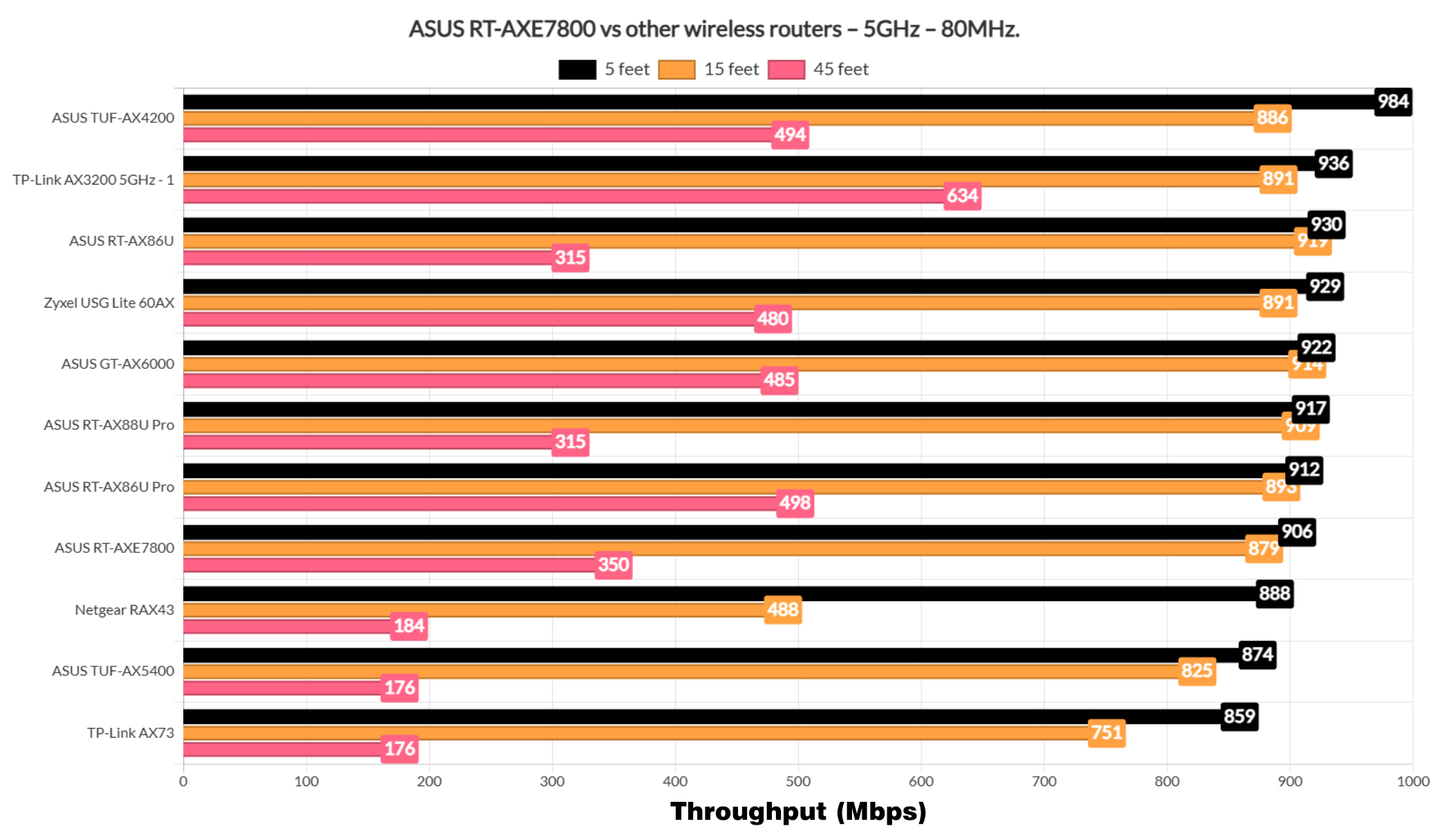
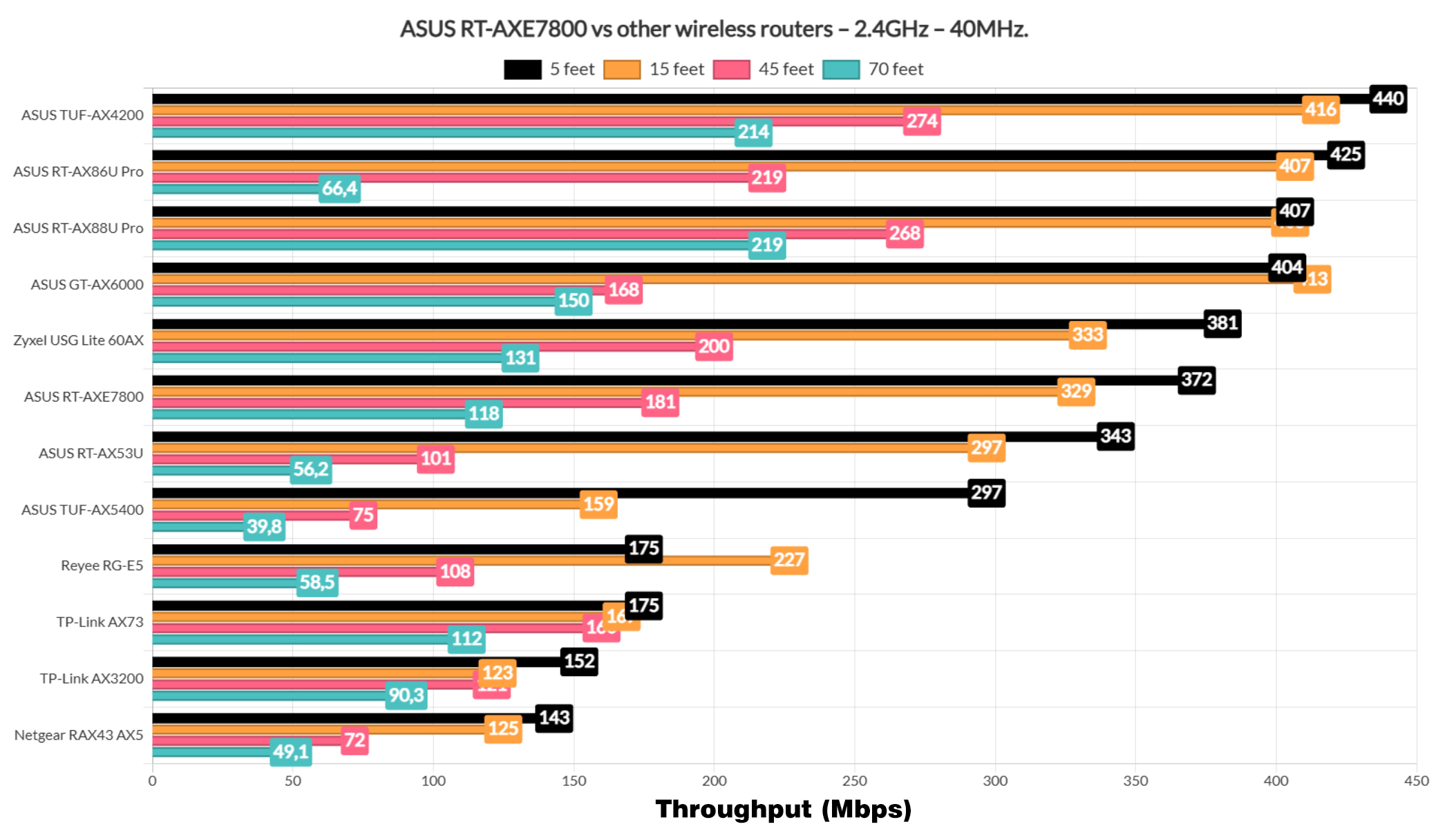
We also need to talk about the 2.4GHz network performance because we do need to use it with older devices and especially anything that’s within the smart devices realm. Using the WiFi 6 client, it produces decent results and, when compared to other wireless routers that I tested until now, we see that the ASUS RT-AXE7800 falls somewhere in the middle.
For the multi-client tests, I again used Mr Jim Salter’s net-hydra tool which you can use as well with the same five clients and wires server, focusing mainly on latency under mixed workloads. With five simultaneous 1080p streams, the RT-AXE78– was usable, but not especially impressive. Two clients stayed around 50-70ms for most tun, while others spent more time closer to 100ms. Moving to 4K streams pushed latency higher across the board, making it clear that the router benefits from spreading demanding clients across its radio rather than loading one band heavily.
Adding intense browsing alongside streaming produced a similar pattern. The newer WiFi 6/6E clients handles 1080p streaming reasonably well, while the WiFi 5 clients struggled more. Browsing latency itself remained acceptable, but switching to 4K streaming, made things noticeably worse across the board.
The download traffic increased the pressure further, with two downloading clients alongside 4K streaming and browsing, combined throughput reaching about 516Mbps. But the latency was high enough that I would not call the experience particularly good. Reducing the workload to one downloading client running repeated 1MB downloads helped, alongside browsing and VoIP, finally producing the kind of responsiveness I wanted to see. The conclusion is fairly simple, the Asus RT=AXE7800 can handle multiple clients, but under heavier loads, it benefits a lot from QoS.
NAS Link Aggregation
We’re done with the throughput and latency tests, so I wanted to put the TrueNAS device that I recently built to good use. So, I decided to check how well the RT-AXE7800 works with LACP aggregation of a couple of LAN ports. I realized that I had to switch the WAN to the 2.5GbE port in order to let the default LAN1 and LAN2 to be aggregated.
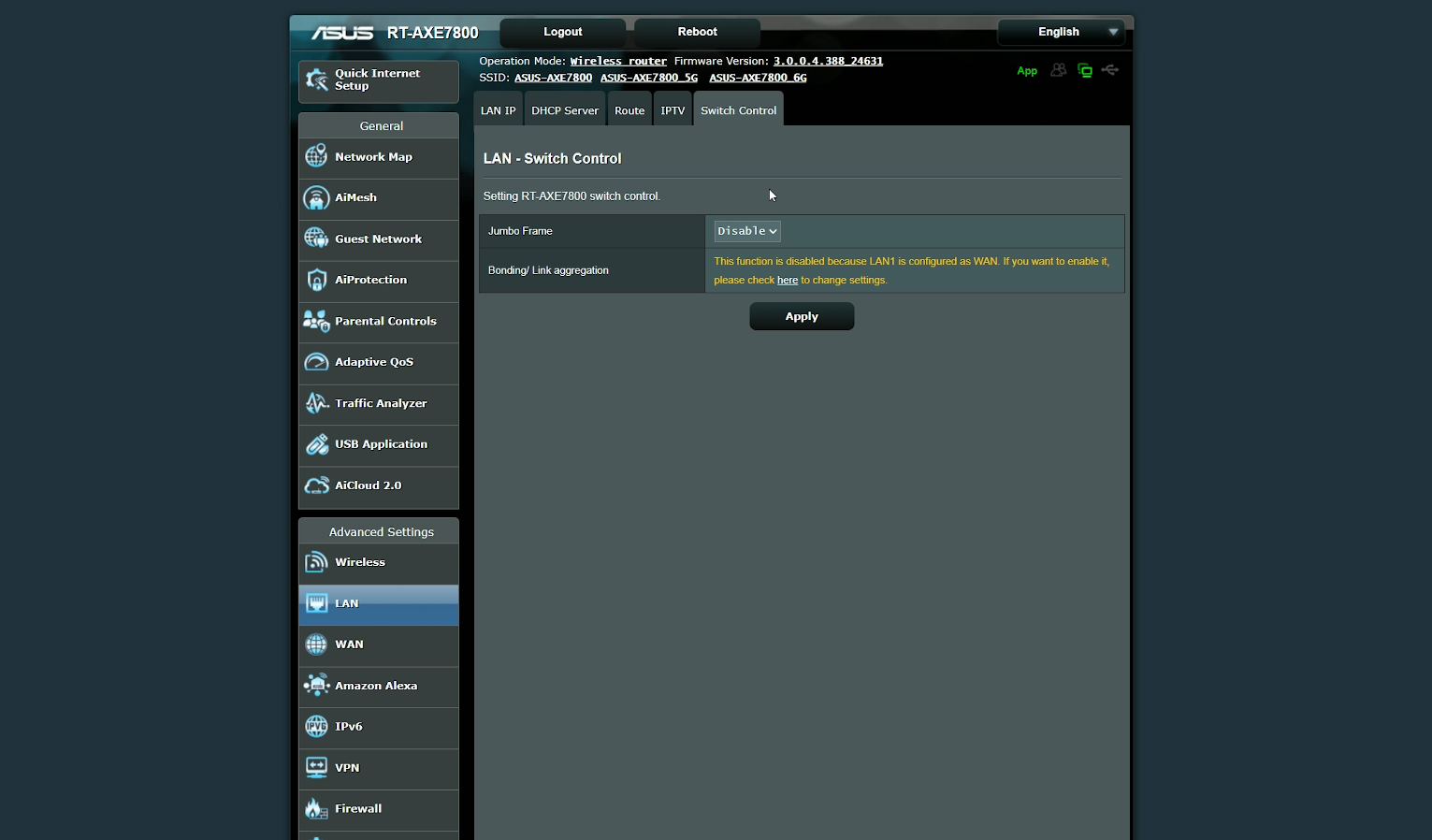
Why not let me use whichever LAN port I want? The problem is that I have a dilemma which I couldn’t figure out. Maybe it’s the long day and it may be something silly that I missed. But I don’t see the point LACP aggregation on this router. I can connect the TrueNAS just fine to the two LAN ports and the links were up and running.
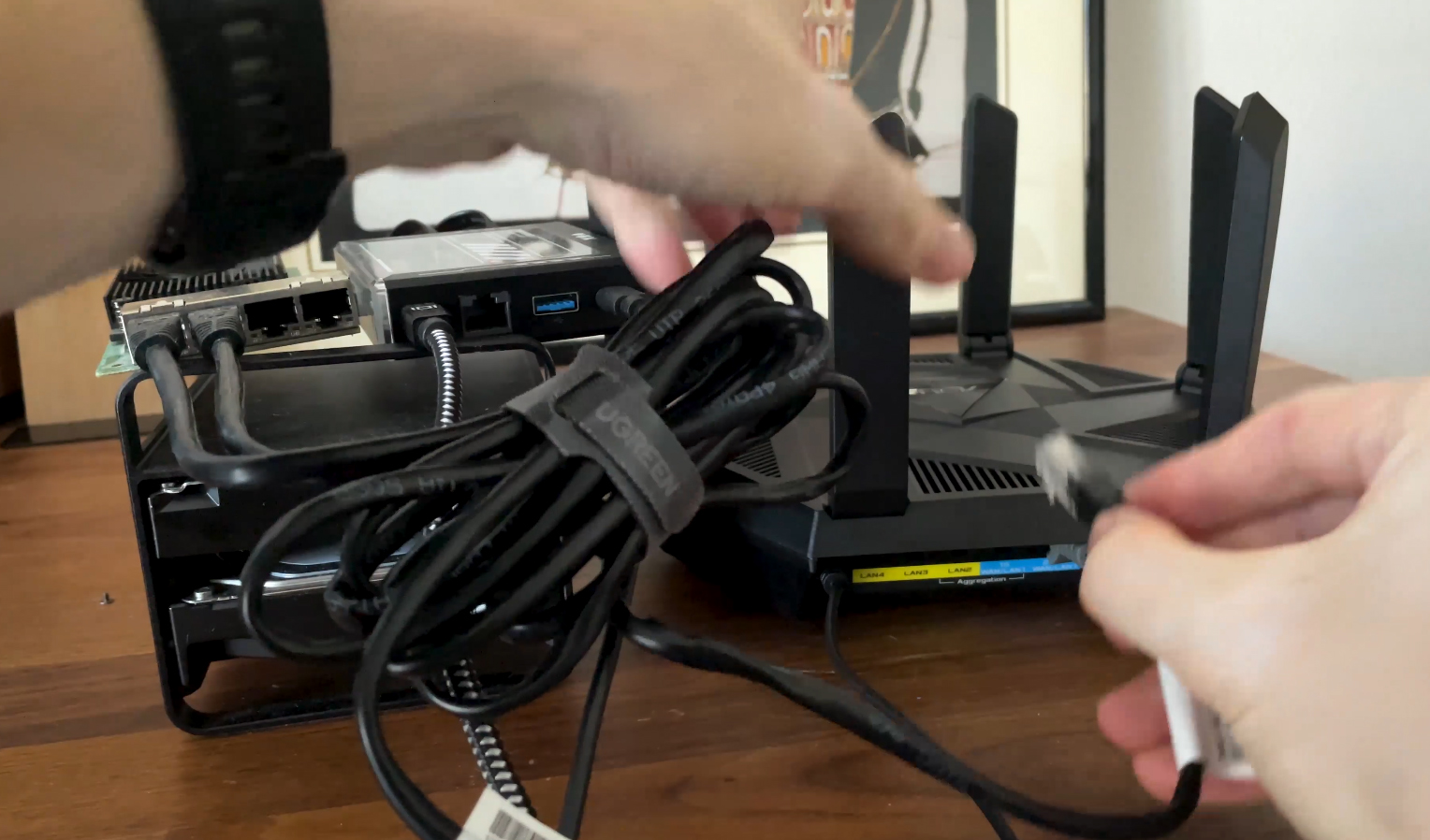
So we should get the full 2Gbps or at least close to it. But now what? I have a computer with a 2.5GbE port, but where do I connect the cable? All that’s left are Gigabit ports, so what’s the point of aggregating LAN ports. Again, it’s been a long day, so do let me know in the comments if I missed something ridiculously obvious. It happens more often than I like to admit.
One last thing, you need to set the WAN port manually because the so-called automatic detection is borderline useless. This is needed if the LAN1 is set to WAN otherwise you won’t be able to set LACP aggregation.
The Dual-WAN performance
Now let’s see the dual-WAN performance of the router. It does support load balancing and failover, so I set up the 2.5GbE port as the main WAN and the 1Gbps LAN1 port as the second WAN.
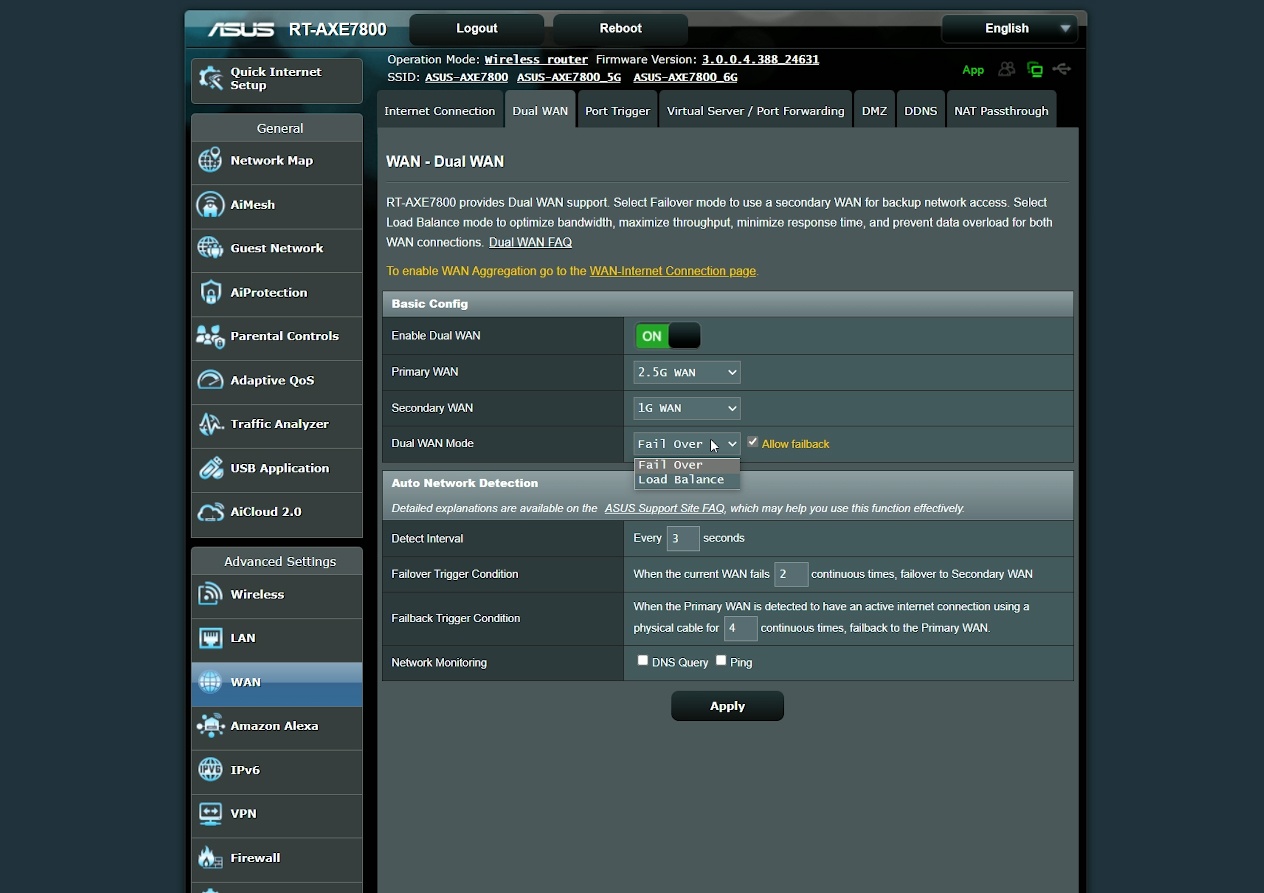
Be aware that the device disconnects the WiFi after every change I make even if it doesn’t pertain to the WAN ports which is mildly annoying. After setting things up, I pinged two domains and disconnected the main cable. It took quite a bit before the RT-AXE7800 switched to the other link, so I checked how long it takes to move back. Only one dropped packet. Not bad. Let’s disconnect the main line again.
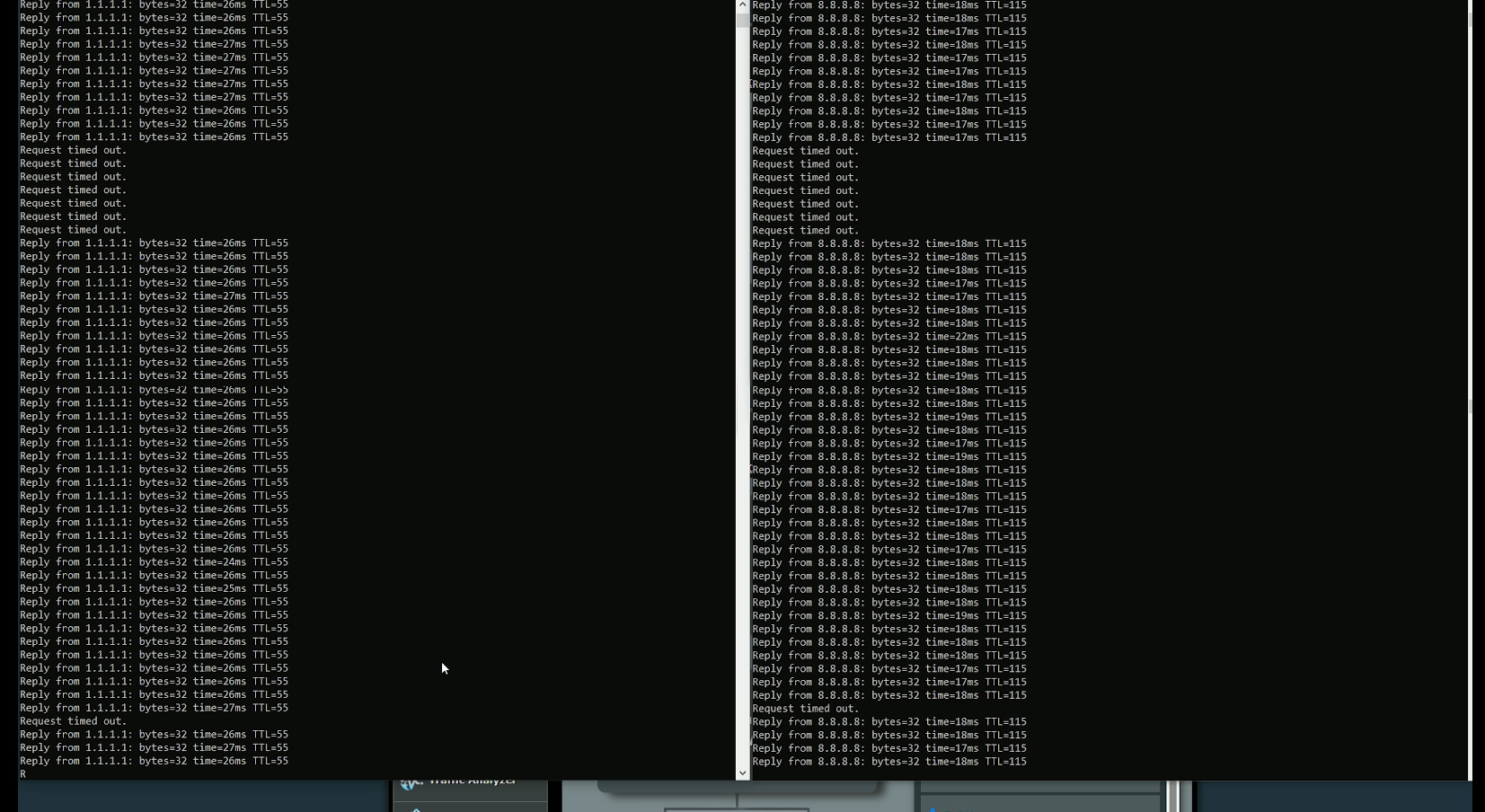
Same performance as before? Yes, so it seems that the router likes to stick more on the main line. Wait up, didn’t ASUS say that there is support for WAN aggregation? Is this all or can we actually increase the bandwidth? Apparently, this function can be found under WAN > Internet Connection and it can be enabled, so the router will use the LAN1 and LAN2 to bond the two links. My internet connection doesn’t go above 1Gbps, but it’s good to know that this feature is available and ready to be used.
The Heat Management
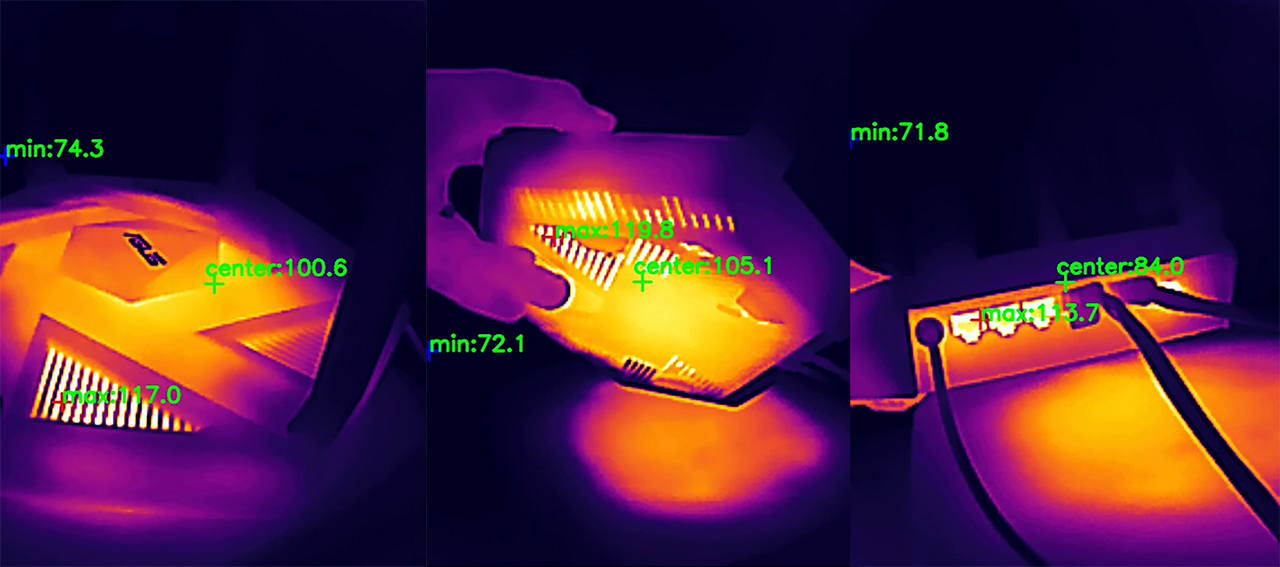
As for the heat management, ASUS has been very generous with the ventilation holes both on the upper section, as well as on the bottom side. But, we’re still dealing with passive cooling, so is that enough? I did use a thermal camera to get an idea and as expected, we can see some warm spots appearing, but that’s normal since the heat is being pushed away from the chipsets.
The temperature doesn’t rise above reasonable limits and I doubt it will anywhere in the future, so there should be no fears of thermal throttling.
ASUS RT-AXE7800 Quick Teardown
ASUS doesn’t like you opening up their routers and they make that very clear when they add those warning stickers on top of the screws, but, at least in the US, you should be protected from such transgressions, well, you should. Anyway, I did open up the RT-AXE7800 and I have documented each step in a dedicated video. The process is fairly straight-forward. There are four screws that need to be removed and then use a prying tool to detach the bottom side.
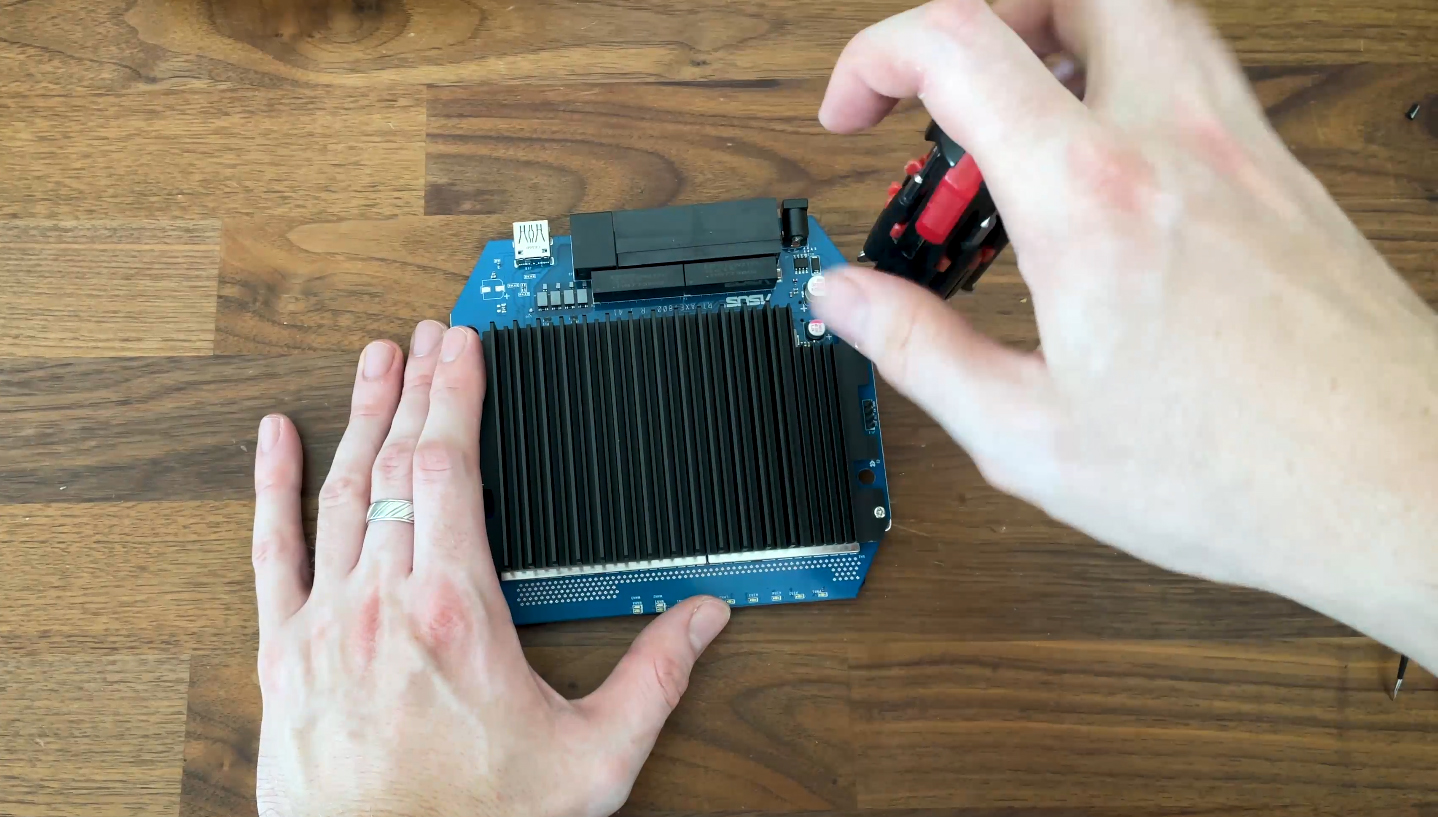
Then, we can see some heat spreaders on both sides of the PCB which also need to be taken out and this does involve detaching the antenna connectors as well. Nothing too complicated though because no gel or glue or whatever it’s called is used here. Then, we get to see the main components.
| ASUS RT-AXE7800 | ASUS RT-AX86U Pro | ASUS RT-AX88U Pro | ASUS ROG Rapture GT-AX6000 | |
| CPU | quad-core 1.7GHz Broadcom BCM6756KFEBG | quad-core 2.0GHz Broadcom BCM4912 | quad-core 2.0GHz Broadcom BCM4912 | quad-core 2.0GHz Broadcom BCM4912 |
| RAM | 512MB Samsung SEC201 K4A4G165WF | 1GB (2X Samsung SEC 234 K4A4G165WF) | 1GB (2x Samsung SEC 310 K4A4G16) | 1GB (2X 512MB) SKHynix (H5AN4G6NBJR) |
| Storage | 256MB MXIC (MX30LF2G28AD-TI) | 256MB MXIC (MX30LF2G28AD-TI) | 256MB MXIC (MX30LF2G189C-TI) | 512MB MXIC (MX30LF2G28AD-TI) |
| Switch | Broadcom BCM53134SKFBG | Broadcom B50212EB1KMLG PHY | MaxLinear MXL SLNW8 2.5GbE Ethernet PHY | Broadcom BCM50991E |
| 5GHz Radio | Broadcom BCM6715KFBG 802.11a/n/ac/ax 4×4:4 | Broadcom BCM6715KFBG 802.11a/n/ac/ax 4×4:4 | Broadcom BCM6715KFBG 802.11a/n/ac/ax 4×4:4 | Broadcom BCM6715KFBG 802.11a/n/ac/ax 4×4:4 |
| 2.4GHz Radio | Broadcom BCM6756 802.11a/b/g/n/ax 2×2:2 | Broadcom BCM6710KFFBG 802.11a/b/g/n/ax 3×3:3 | Broadcom BCM6715KFBG 802.11a/b/g/n/ax 4×4:4 | Broadcom BCM6715KFBG 802.11a/b/g/n/ax 4×4:4 |
| 6GHz Radio | Broadcom BCM6756 802.11a/n/ac/ax 2×2:2 | – | – | – |
The Power Consumption
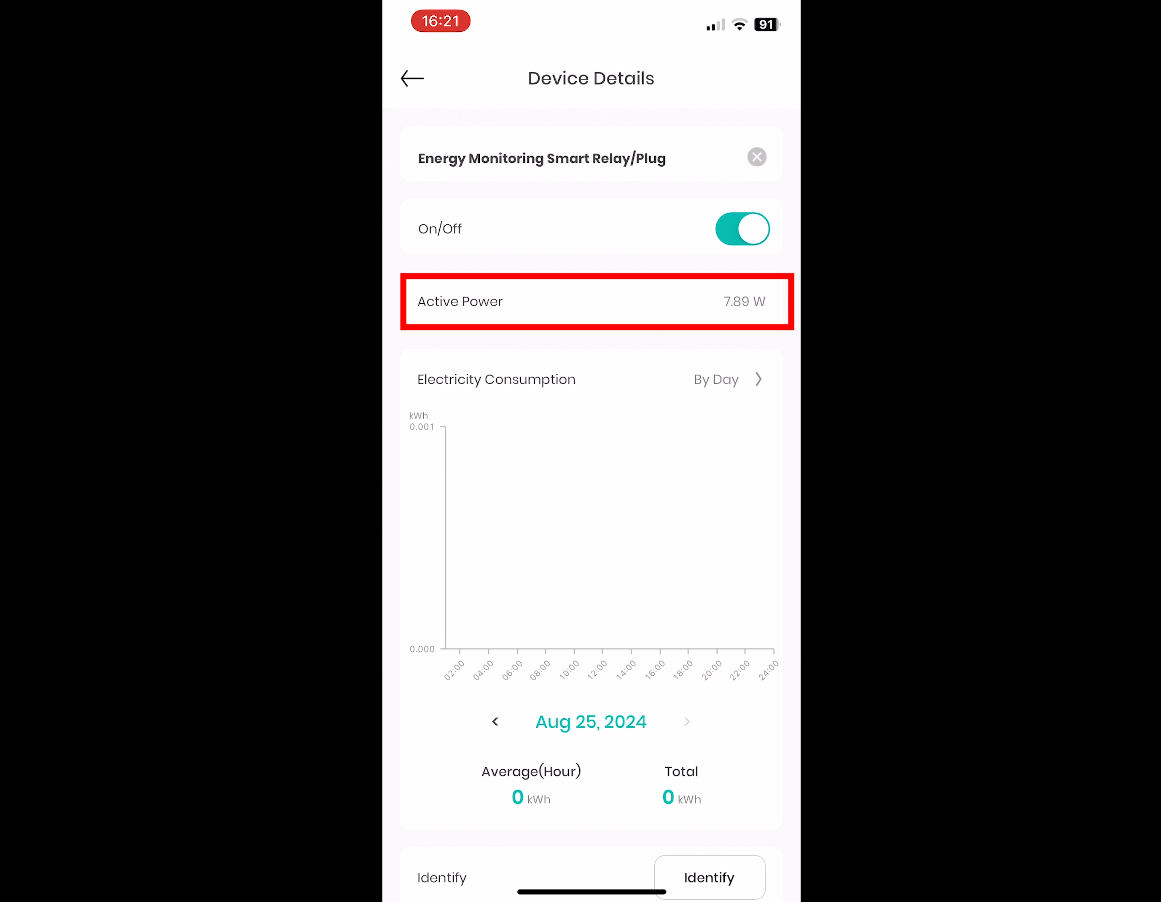
To check the power consumption of the router, I connected a smart relay and used their dedicated app to see the real-time status data. And this is what it needs for most of the times, not at peak load.
The Web-based Interface
After the eye-candy layout of the ExpertWiFi EBR63, I realized that the layout of the ASUS routers definitely needs a revamp, but we’re still getting everything that’s needed in the same place we’re accustomed to. So, there’s the General settings on the left where you can check out the AiProtection section built and maintained by a third-party, TrendMicro but which remains included into the price of the router.
And trust me, ASUS is one of the few that does this. Then, there’s the Parental Controls which are also powered by TrendMicro and will collect some data. We do get to add devices, block certain categories and schedule the Internet access, a feature which again, is usually locked behind a subscription. The QoS is going to let you prioritize which type of applications will receive the most bandwidth and there’s also the Traffic Analyzer by Apps and Devices.
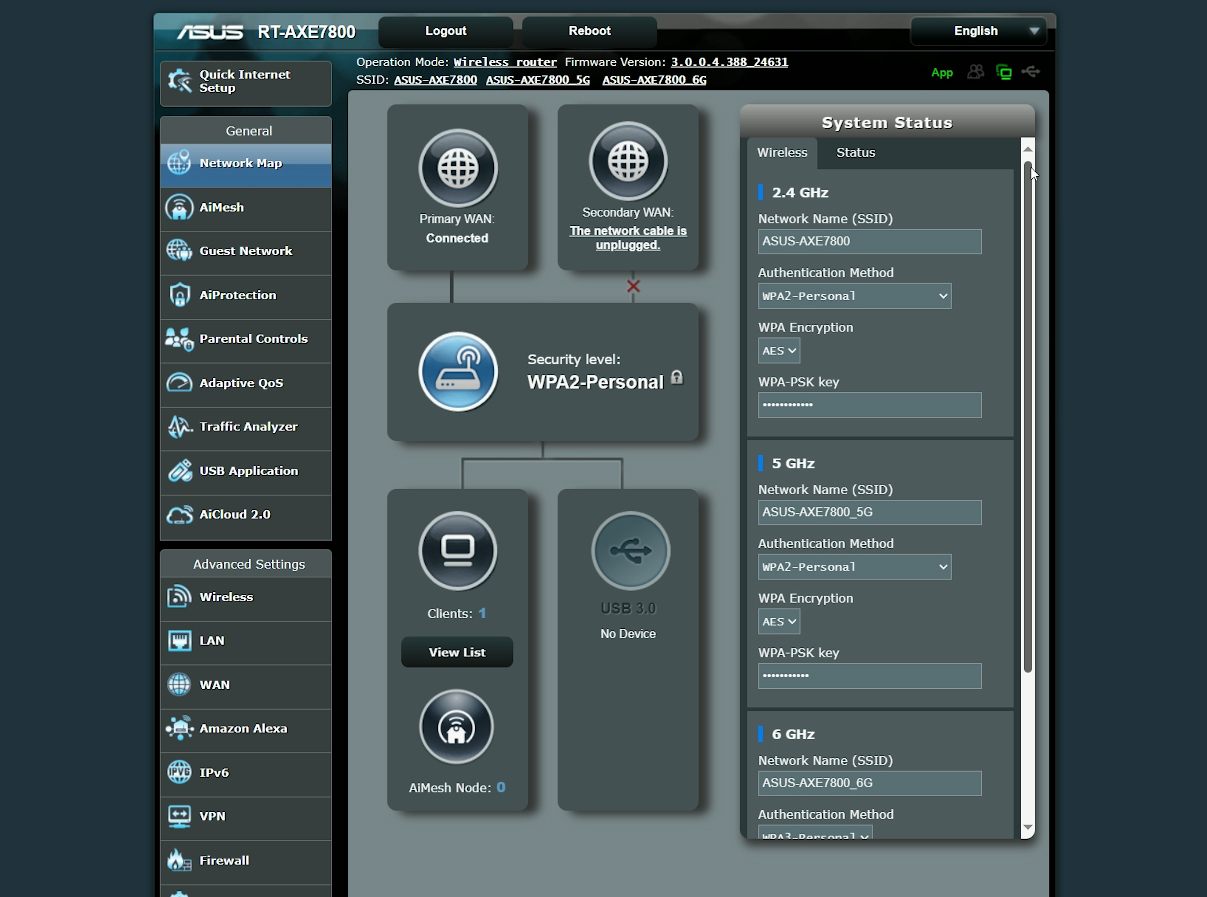
Some of the usual gaming features are missing, so I guess the RT-AXE7800 is not a part of the gaming series. Anyway, we get the Advanced settings where you can go quite in depth with the configuration and control, especially for the Wireless settings.
Some of these features have been previously explored, such as the dual-WAN and the LACP aggregation, but I also need to mention the VPN support which covers PPTP, OpenVPN, IPSec and WireGuard. Of course, the VPN Fusion and the Instant Guard are still present as well.
The Mobile Application
Now let’s talk about the app. The layout is the same as with most other ASUS routers. The Home window shows some status info in the middle, where you can also check the AiMesh connections and I was surprised to see that there was the Game Mode included as well.
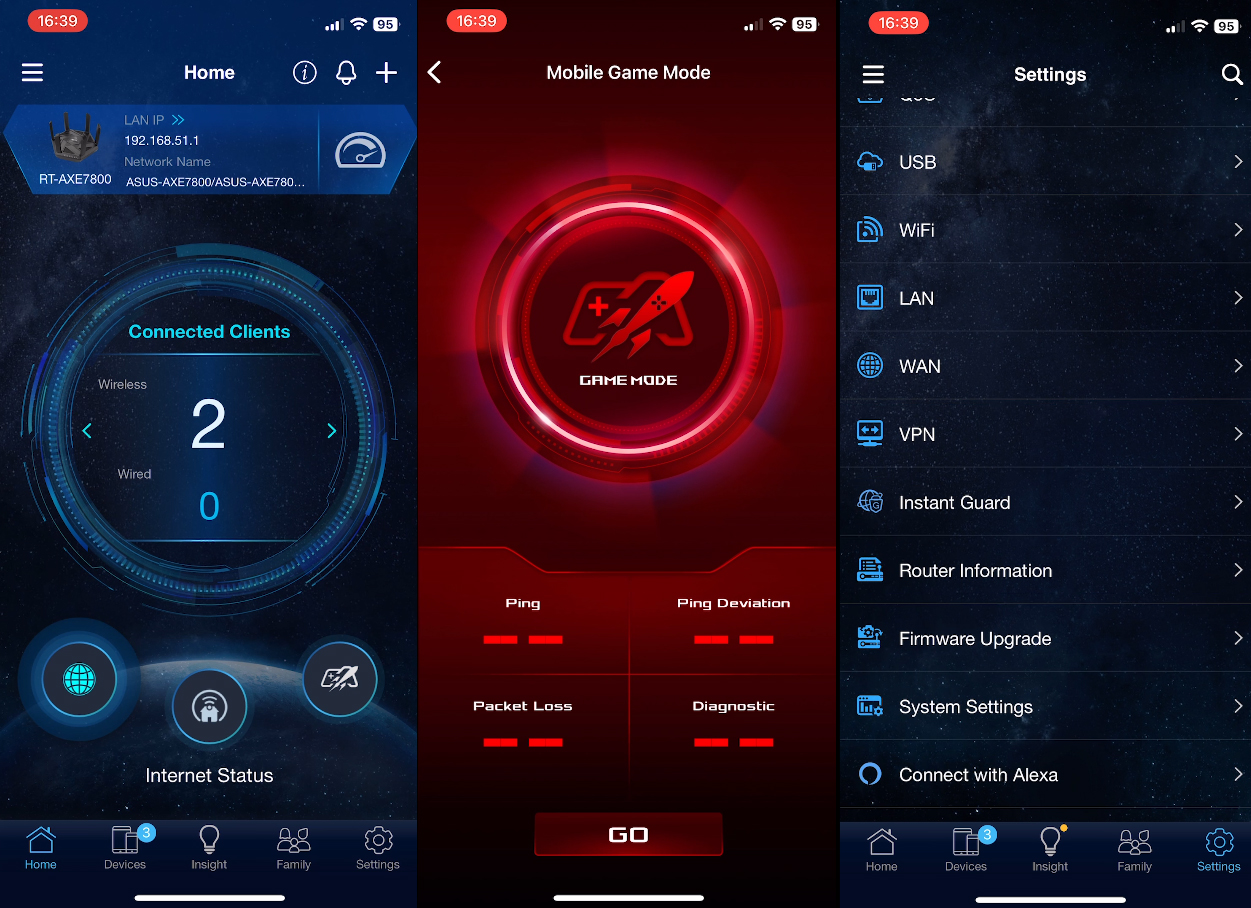
The QoS for the devices is more intuitive here than in the web-based interface since you can choose the priority of each client, while the Family section will let you use templates or create profiles for the web access and to set up Internet access schedules. Lastly, we get the Settings section which offers some amount of control and configuration, but it still pales in comparison with the web-based Advanced settings.
The Conclusion
Now that we’ve reached the end, what did I mean when I said that it could have been better you may ask? Well, it doesn’t feel very stable and I kept on getting into weird little bugs here and there which usually were solved after a restart, but they’re very annoying. The performance is OK, especially the multi-client latency. The 6GHz does open up more possibilities, kind of, because ASUS is already releasing its WiFi 7 router series which I assume will be better. We’ll see.
Asus RT-AXE7800
Pros
- 6GHz (although limited to 160MHz)
- Decent performance under heavier workloads
- AiMesh support
Cons
- Experienced annoying bugs
- The strange design may not be on everyone's taste