
Originally published: June 12, 2026
Updated: September 5, 2026
A wall-plate access point has a beauty of its own. It’s elegant if seen, otherwise easy to hide and it can completely eliminate any visible cable while also providing a WiFi connection. And that’s without needing any power socket or cable, just an Ethernet cable inside the wall.
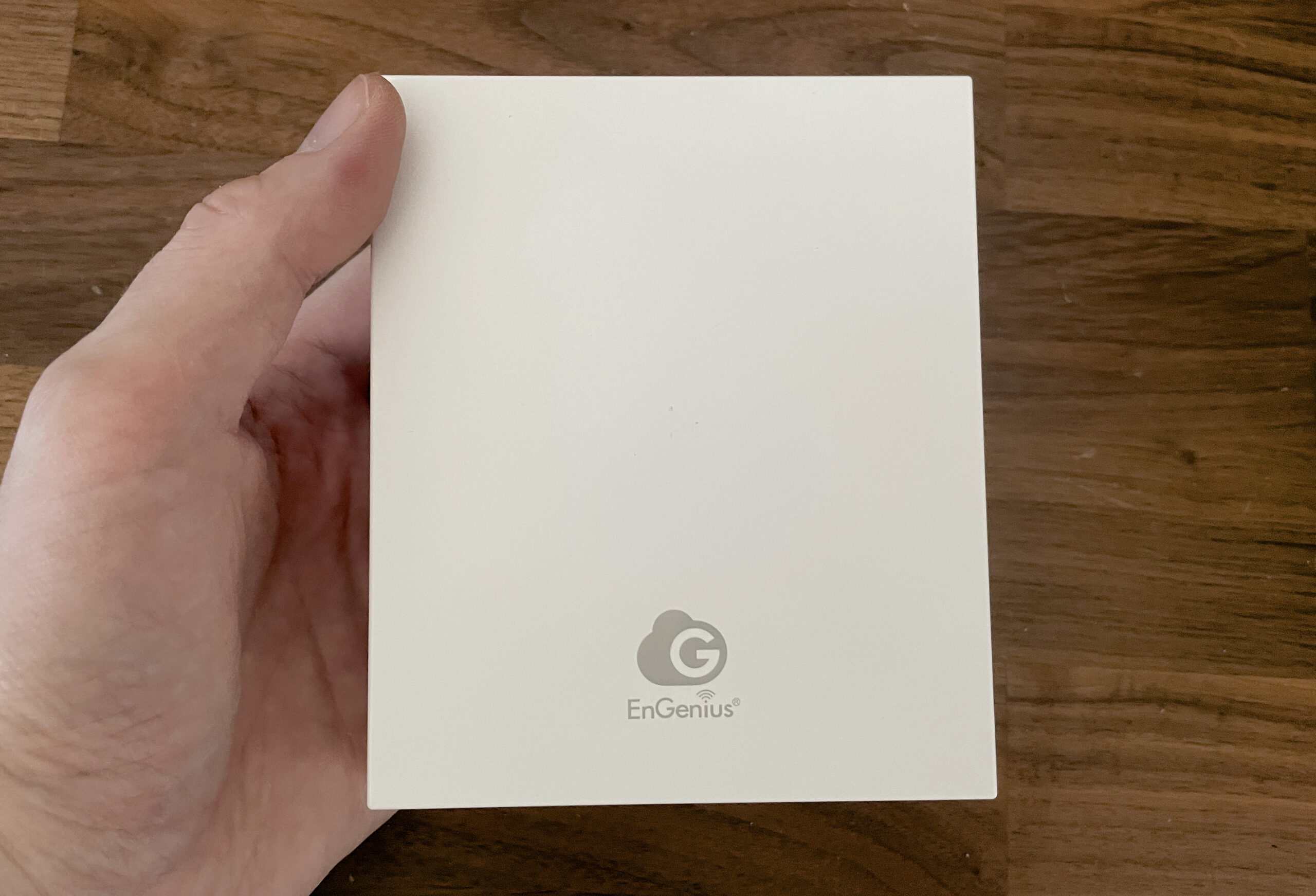
Of course, there is more and in the case of the EnGenius ECW515, you can power up another PoE device and there are four Ethernet Gigabit ports for other client devices. I know, it defeats the no-cable purpose, but nothing beats a cabled Internet connection.
| EnGenius ECW515 | |
|---|---|
| EnGenius.com | Official Product Page |
Of course, this is not the focus of this review since I am going to test the WiFi connection and see if it’s worth buying. As a quick note, this is a WiFi 7 access point but not because it has support for 6GHz, it doesn’t. It’s because of the MLO. The PoE in port is 2.5GbE and we are dealing with a Cloud-managed access point, so it seamlessly will work with other EnGenius devices.
The Design and Build Quality
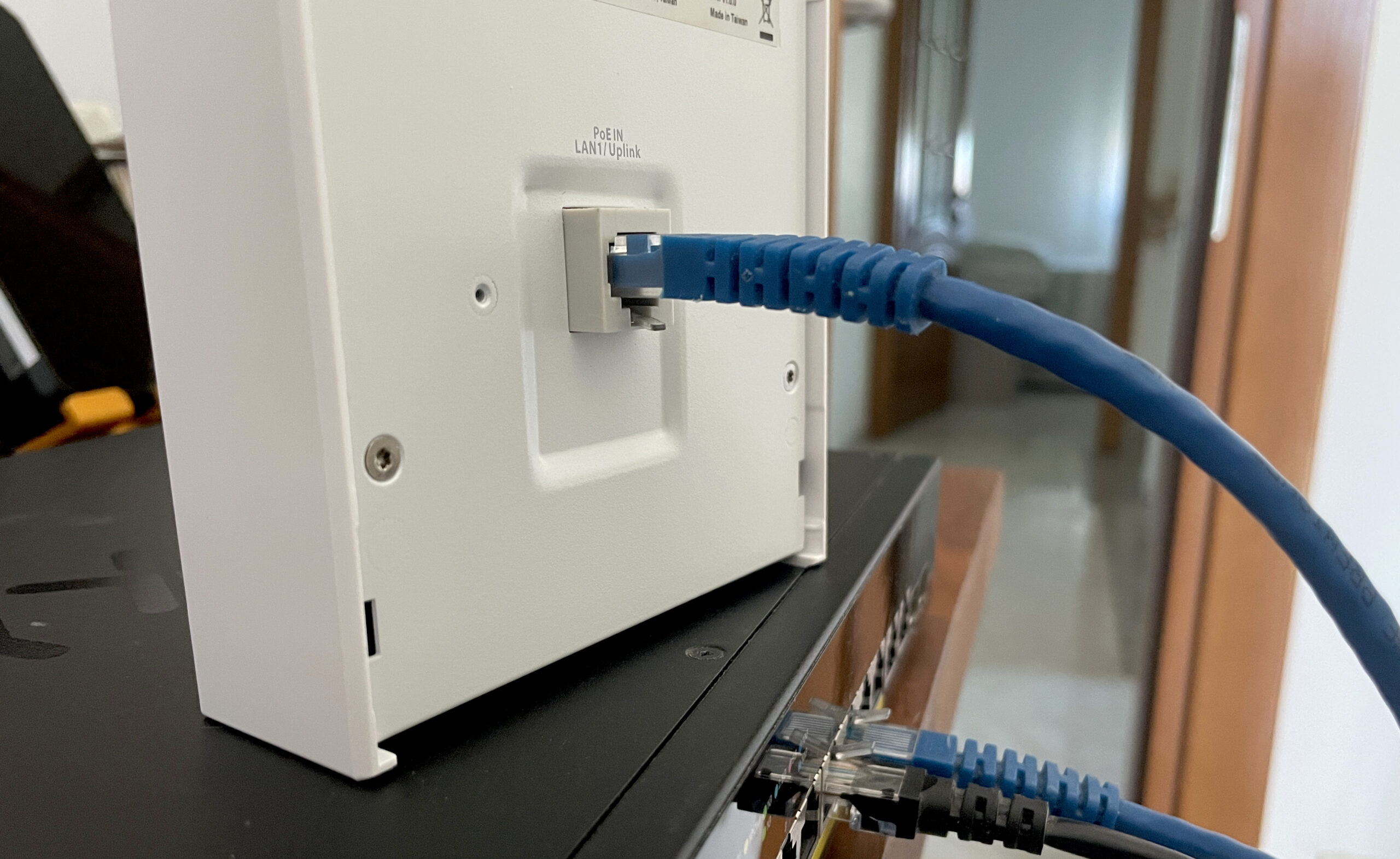
After taking it out of the box, we get to see the device is feels solid despite the plastic top and in fair part due to the metallic bottom. And yes, that’s where you are going to find the 2.5GbE LAN PoE and Uplink port. Because, of course, there is the option to power up the device using a regular power cord.
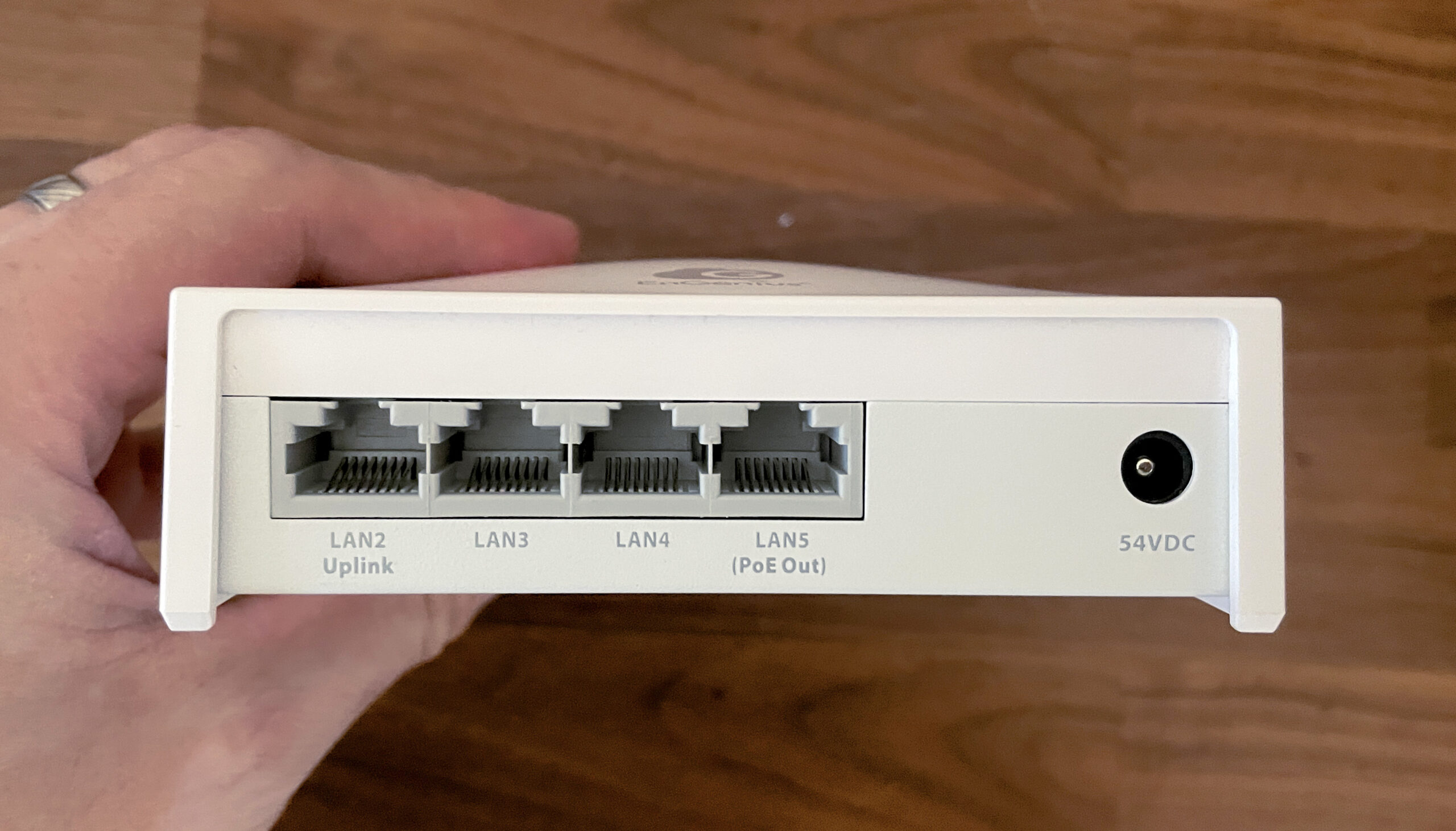
This can be found on the bottom side along with the four Gigabit ports from which one of them is a passthrough limited to a maximum of 7W. Be aware that if you rely on the PoE in port to power up the EnGenius ECW515, then the PoE out gets disabled, so that’s a bummer. On its side, you can see the Reset button and there are some curious holes all around. They are for the metallic plate that is included inside the box and it’s quite versatile.
Let’s now check how the wireless performance in the Test Lab:
Wireless Performance and Test Lab
EnGenius ECW515
Test details
Test year: 2026. Firmware: v1.x.56.
Charts use measurements stored in the MBReviews benchmark database. Stability charts are downsampled for display; the full one-second series remains in the database.
Read the full MBReviews Wi-Fi testing methodology.
Explorer version: 0.23.2.
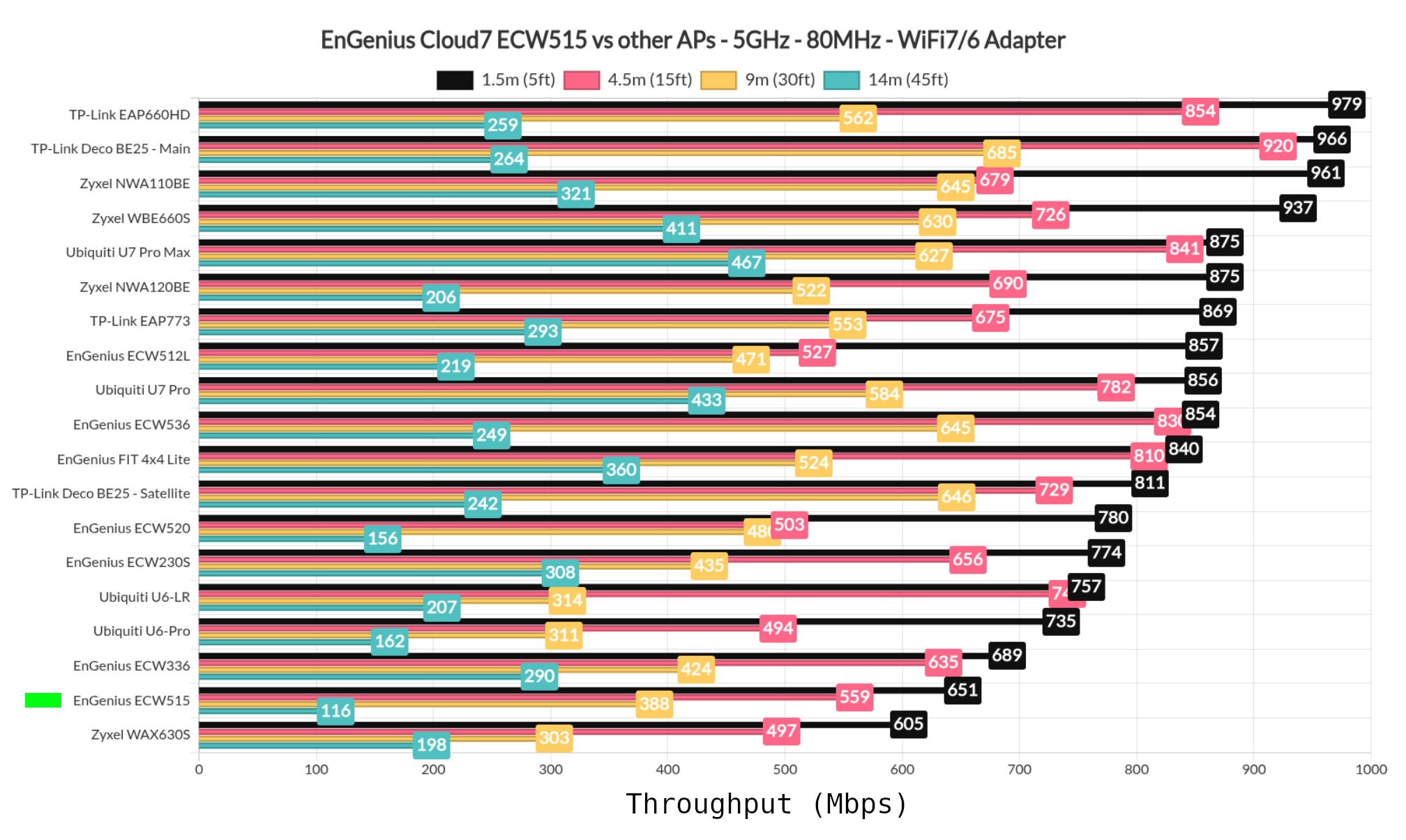
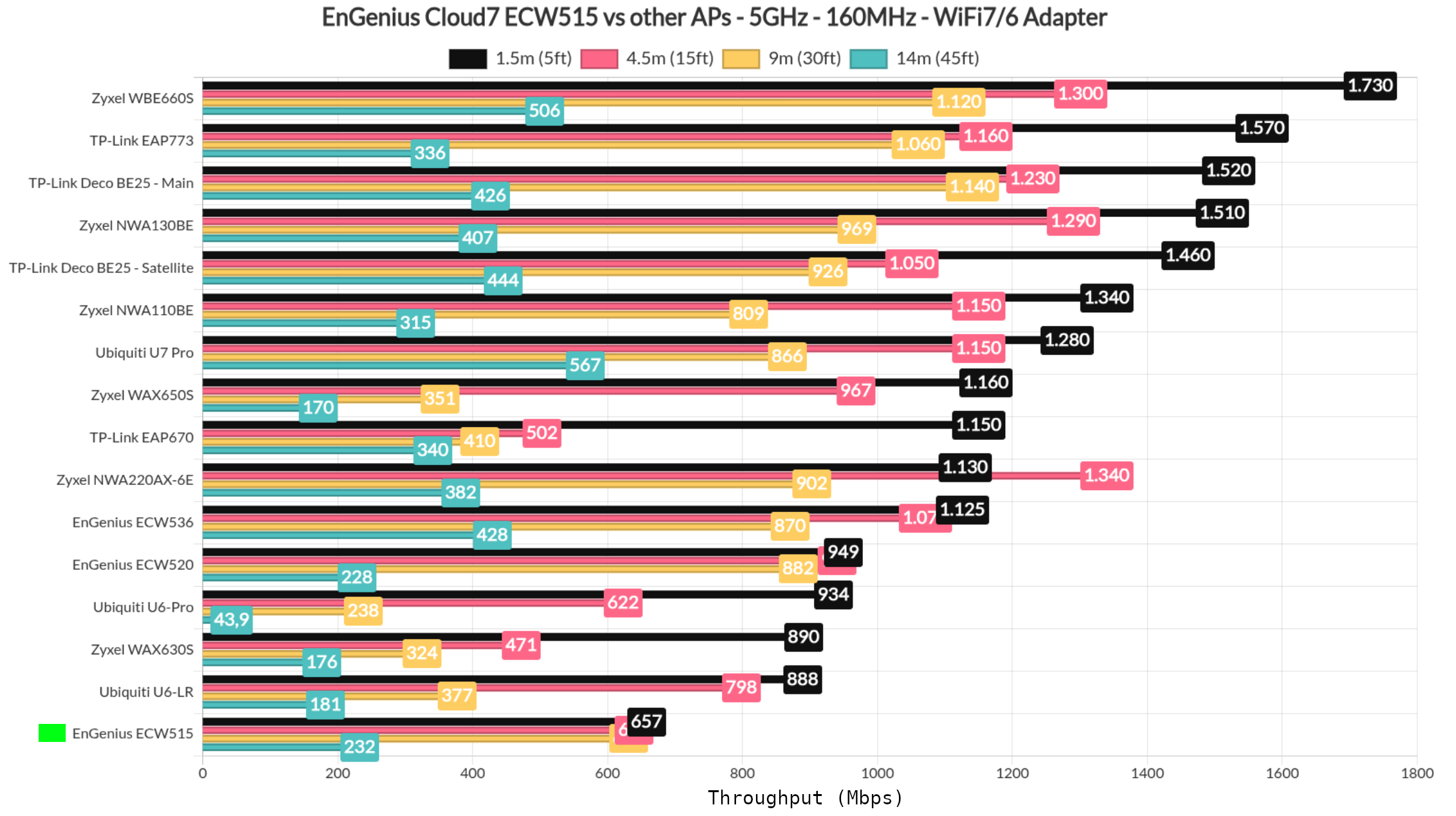
Of course, I ran some single-client tests as usual and I noticed that the throughput was far from ideal so I thought that there may be an issue with the MediaTek MT7987 2.5G PHY. But no, it was that the antennas got overwhelmed, so don’t keep this router that close to the client devices. I do have to mention that while running my single-client tests far away from the access point, I had to restart the AP regularly to be able to run the test again. So, as I feared, this matches a bug that was supposed to be fixed in the 2025 firmware for the chipset, but I seem to have still encountered it. I assume you will not notice it unless you go through sustained 600+Mbps traffic for at least several good minutes (10+). Also, I could reproduce this issue only at -75+dbm.
As usual, I included some comparison tables with other access points.
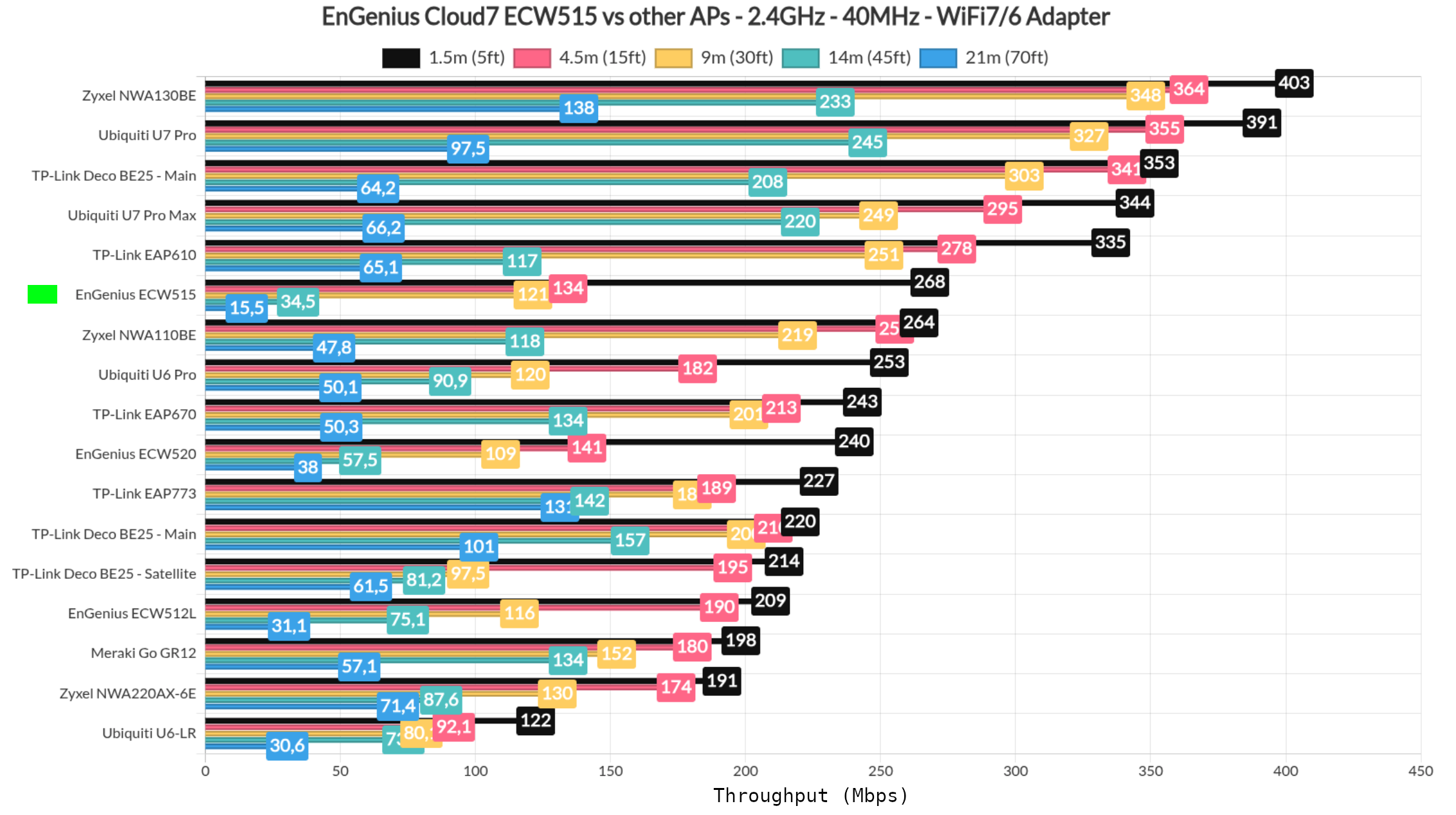
While running the usual 2.4GHz single client tests, things weren’t very smooth. I have experienced a worse behavior on this considering that I had to do a few hard reboots to get the AP to allow me to run the basic single-client test. The Mediatek MT7987 needs patching asap. Again, I included a comparison table with other wireless access points as well.
The Thermal Management
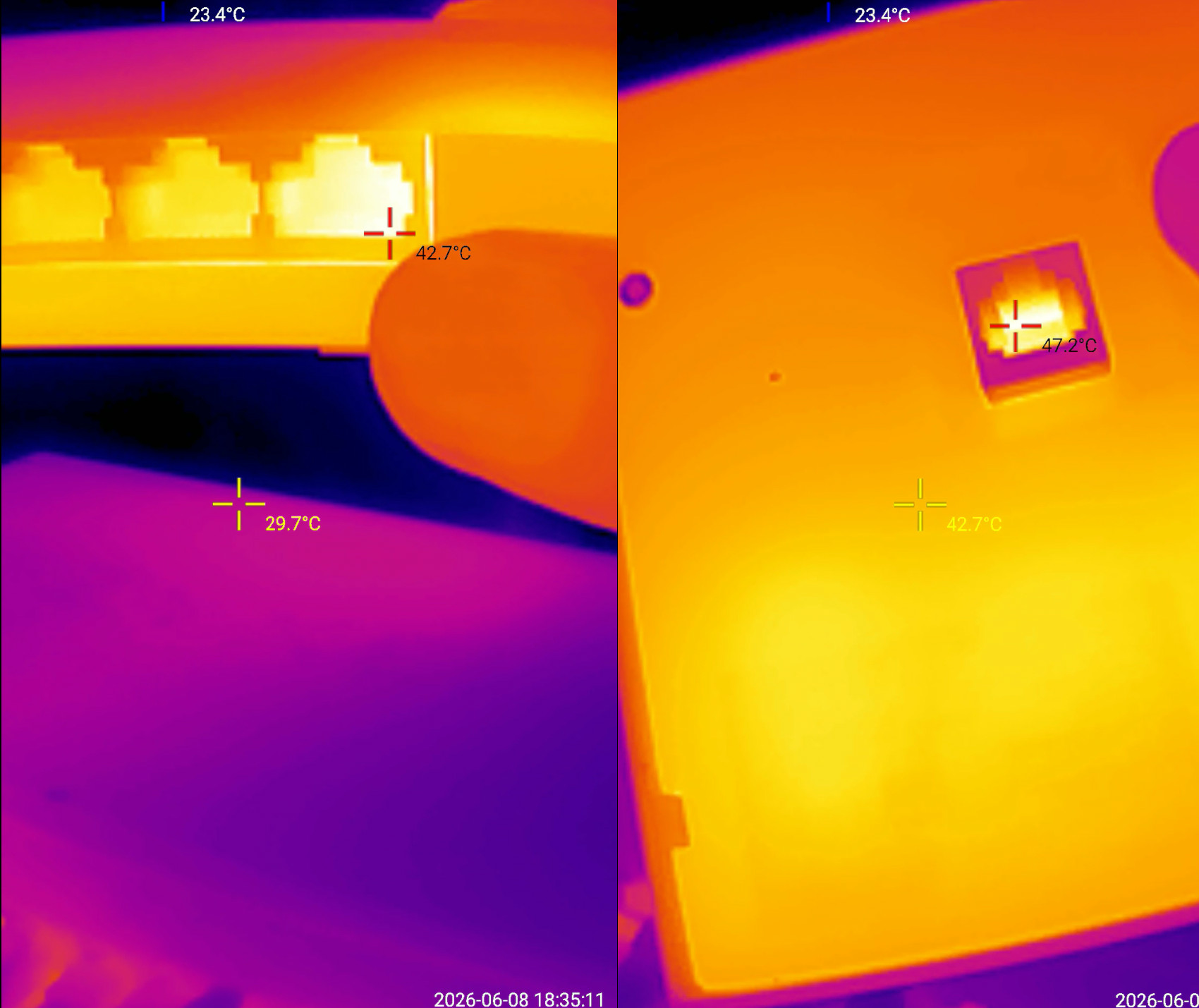
I used a small thermal camera module to check the actual temperature while I was running the speed tests, so these values are when the access point is strained to the max, not how it will tipically run. So, as expected, there is a bit of heat built-up near the ports which is expected and also on the metallic plate and PoE port. It did not cause any CPU limitations, so no need to worry about that. Just make sure to keep the device in the open.
EnGenius Cloud7 Wall Plate ECW5W515 Teardown
Despite the fairly contained price of the access point, we still do get a metallic black plate which does help a lot with the heat dissipation. But what I didn’t like was these two screws. Was it necessary to go floral, I say no. In any case, after opening the plastic front plate we can see the antennas and the connectors are not soldered, so kudos to EnGenius for that.
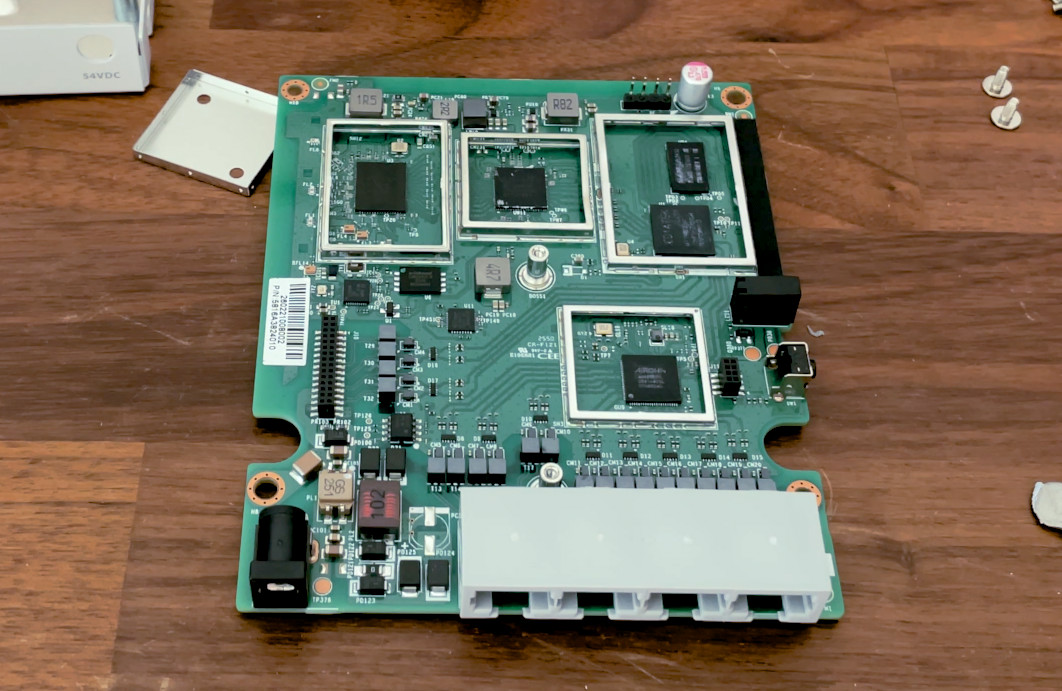
We can imemdiately identify the IC+ IP802BR 2522C11 QA4NK24.1 PoE IC controller on one side and then, on the other side, after removing the small PCB for the 2.5GbE PoE port which houses the TPS23731 PoE controller, we can finally see the main components, most hidden by aluminum covers.
Hardware Comparison
| EnGenius ECW515 | EnGenius ECW520 | EnGenius ECW516L | |
| CPU | quad-core 2.0GHz Mediatek ARM MT7987AV | quad-core 1.5GHz Qualcomm IPQ5322 | tri-core 1.8GHz Mediatek MT988DV (A73) |
| RAM | 1GB DDR4 Nanya 2412 NT5AD512M16C4-JR | 1GB DDR4 Nanya NT5AD512M16C4-JR | 1GB DDR4 SDRAM Nanya NT5AD512M16C4-JR 222801NOEF |
| Storage | 256MB NAND Winbond 25N02KVZEIR | 256MB NAND Winbond (25N02KWZEIR2434) | 256MB NAND MXIC X241952 MX35LF2GE4AD-Z43/ 128MB serial NOR Winbond 25Q128JVSQ 2251 |
| 6GHz Radio | – | Qualcomm QCN6274 802.11be + 2x 50083714 + 2x 42674013 modules | Mediatek MT7976QN2415-BWELBPTA4836 3×3 |
| 5GHz Radio | Mediatek MT799DAN 802.11a/b/g/n/ac/ax/be 2×2 | Qualcomm IPQ5322 802.11a/b/g/n/ac/ax 3×3 | Mediatek MT7976QN2415-BWELBPTA4836 4×4:4 |
| 2.4GHz Radio | Mediatek MT7976CN 802.11b/g/n/ax 2×2 | Qualcomm IPQ5322 802.11b/g/n/ax 2×2 | Mediatek MT7977IAN 802.11b/g/n/ax 2×2:2 |
The Standalone Mode
For the Cloud-based EnGenius Access Points, the standalone mode is usually not even bare-bone, they’re more like here’s a basic set of information and a very, very scarce amount of settings.
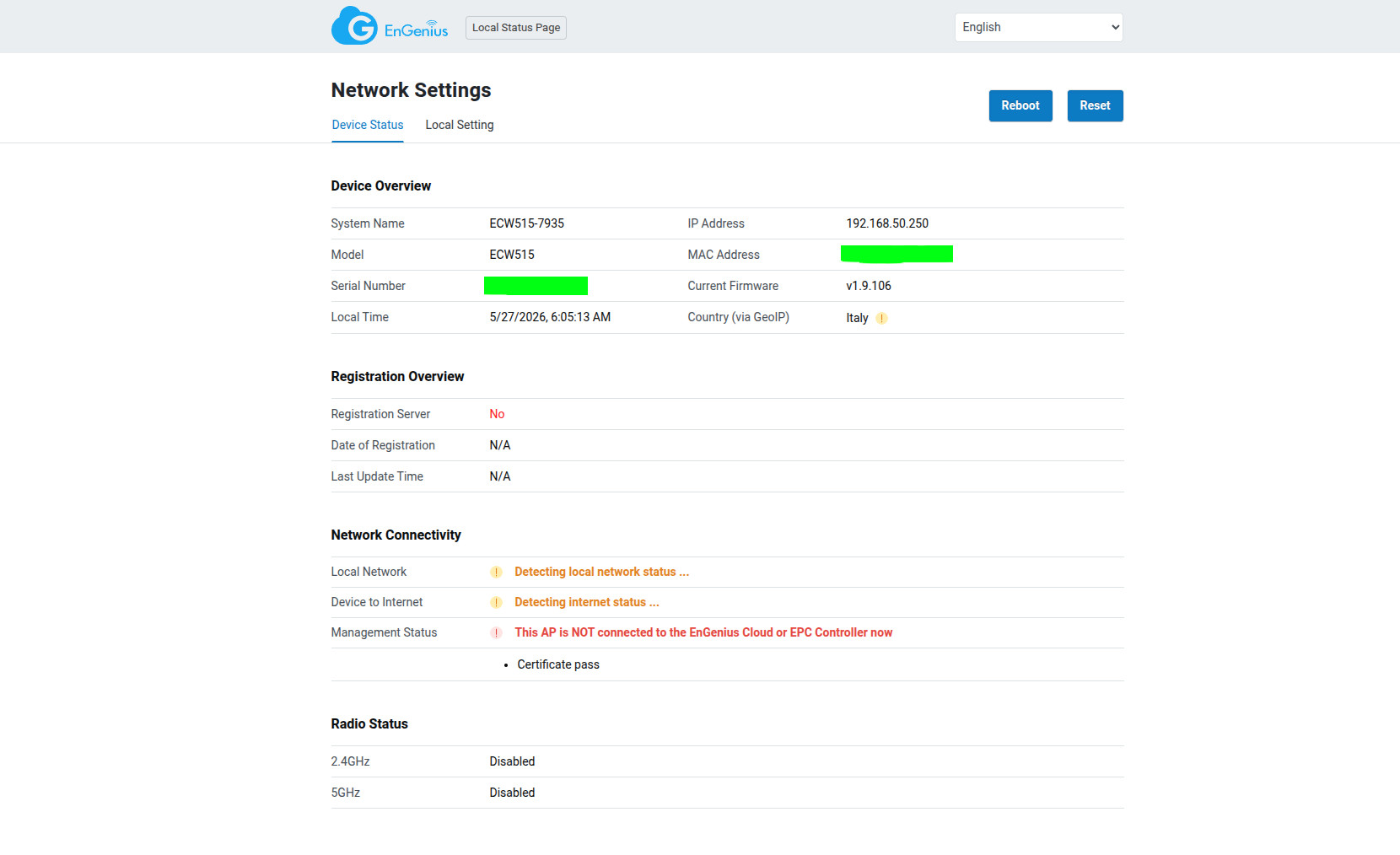
But on the ECW515 it’s a bit worse than that. The interface is very slow and crashes a lot, so I couldn’t enable the Radios or do anything. Tried it on a couple of browsers and the same behavior persisted. So, if the Cloud is ever down or out, well, good luck.
The Cloud Platform
The EnGenius Cloud platform remains intuitive and simple to use. The Dashboard gives some general status info about all the networking devices added to this specific Network. You can make multiple Organizations and each can have multiple Networks. From here you can quickly go to the Access Points and choose the ECW515.
Doing so will show some status info specific to this wireless access point, but you can also change the SSID and Radio settings from here. Naturally, after adopting a new device, it will receive the general settings set up under Configure. But, here you can change them manually to fit this specific device.
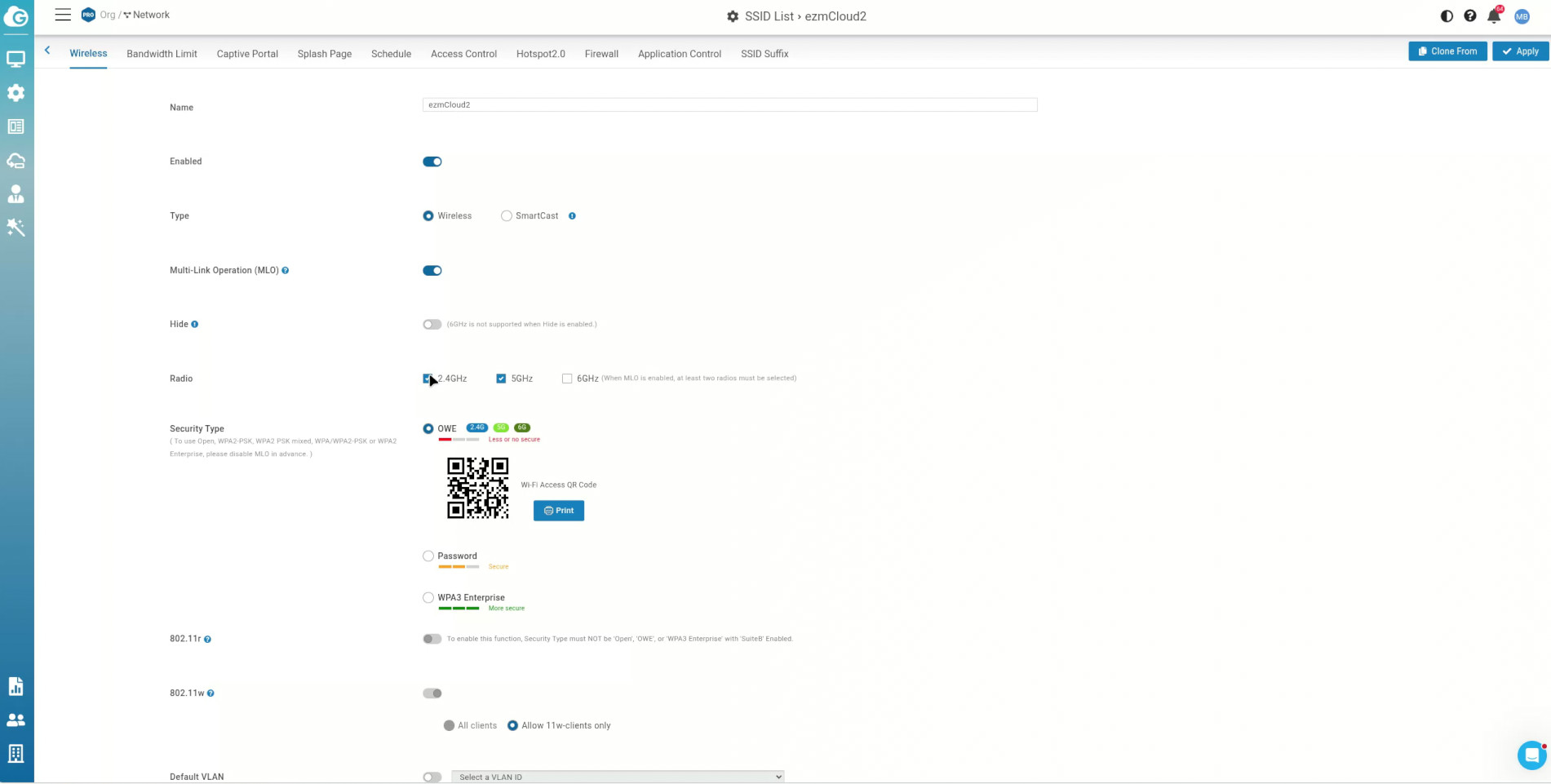
Next, this is the general SSID area where you can enable MLO if you want, change the Security and much more than that. You get the full suite of features for the device to run in both SMBs and enterprise industry. Under Radios, you get to adjust the general settings for each radio. Another interesting feature is the Diagnostic which, in its basic form, is a bit limited as you can see, but if it has been unlocked to Pro, it does allow a sys admin to properly investigate both the EnGenius device and the client behavior remotely with ease.
The Conclusion
So, should you invest in the EnGenius ECW515 Wall Plate access point. It depends. If you have lots of 6GHz client devices and will rely solely on WiFi for the connection, then no. But, that’s not really the case for a lot of people since WiFi 6 and 5 devices continue to be the most common and the option to connect a gaming device via cable remains highly appreciated. The PoE passthrough would have been better if the ECW515 could handle it while PoE powered, not that I am complaining with the current approach either. I have uncovered some potential chipset bugs which you probably won’t even notice, but I do expect EnGenius to quickly patch them up regardless.
EnGenius ECW515
Pros
- Supports MLO
- Decent performance under heavier workloads
- Multiple ports
- PoE passthrough
Cons
- No 6GHz
- PoE passthrough won't work when ECW515 is PoE powered